---
title: Sending contracts and collecting eSignatures
description: Sign contracts and other documents with B12's eSignatures tool
---
[Skip to content](https://support.b12.io/en/sending-contracts-and-collecting-esignatures#main-content)
[](https://support.b12.io/en?hsLang=en)
- [B12 Website](https://www.b12.io/)
- Products
Show submenu for Products
- Sites
Show submenu for Sites
- [AI builder](https://www.b12.io/ai-website-builder)
- [Backends](https://www.b12.io/backends)
- Client engagement
Show submenu for Client engagement
- [Client intake forms](https://www.b12.io/client-intake-forms)
- [Contact manager](https://www.b12.io/contact-manager)
- [Templates](https://www.b12.io/ai-website-prompt-gallery)
- Resources
Show submenu for Resources
- [Resource center](https://www.b12.io/resource-center)
- [Case studies](https://www.b12.io/case-studies)
- [Pricing](https://www.b12.io/pricing)
- [Log in](https://b12.io/dashboard/)
Open main navigation
Close main navigation
- [B12 Website](https://www.b12.io/)
- Products
Show submenu for Products
- Sites
Show submenu for Sites
- [AI builder](https://www.b12.io/ai-website-builder)
- [Backends](https://www.b12.io/backends)
- Client engagement
Show submenu for Client engagement
- [Client intake forms](https://www.b12.io/client-intake-forms)
- [Contact manager](https://www.b12.io/contact-manager)
- [Templates](https://www.b12.io/ai-website-prompt-gallery)
- Resources
Show submenu for Resources
- [Resource center](https://www.b12.io/resource-center)
- [Case studies](https://www.b12.io/case-studies)
- [Pricing](https://www.b12.io/pricing)
- [Log in](https://b12.io/dashboard/)
- [Start for free](https://b12.io/signup/)
[Start for free](https://b12.io/signup/)
How can we help?
- There are no suggestions because the search field is empty.
1. [B12 Help Center](https://support.b12.io/en?hsLang=en)
2. [Built-in features](https://support.b12.io/en/built-in-features?hsLang=en)
3. [eSignatures](https://support.b12.io/en/built-in-features?hsLang=en#esignatures)
# Sending contracts and collecting eSignatures
## Learn how to send contracts and documents for signing using B12’s eSignatures tool.
|  Written by: Meredith Last updated: 16 Oct., 2026 |
| --- |
You and your clients can sign contracts and documents directly through a secure link.
**Note:** eSignatures requires at least one Client Engagement seat. You also need your document saved as a PDF before you start.
There are no monthly limits on the number of documents you can send or eSignatures you can collect.
**Tip:** If you want to reuse a document in the future, consider creating a template instead. [Learn how to create a template.](https://support.b12.io/en/articles/7354798-how-to-create-and-use-templates-for-esignature?hsLang=en)
### Creating a new contract document
1\. In the left sidebar menu, click `eSignatures`.
2\. Click `Create a new document`.
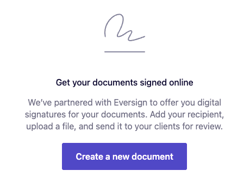
**Note:** If you've created a document previously, click `+New Document` in the top right corner.
3. Click `Blank document`.
- Enter the document name.
- Select signatories.
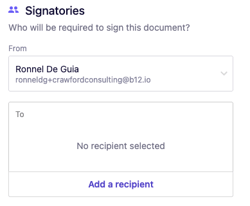
- - You can customize the sender from the **From** section.
- Click **Add a recipient** to add a recipient from your existing list, or you can create a new one by clicking **Add new**.
4\. Upload a PDF document. Optionally, add a **Signer PIN**.
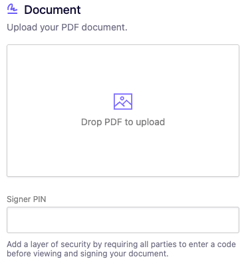
**Note:** The Signer PIN is a way to make sure your document is secure. Add a layer of security by requiring all parties to enter a code before viewing and signing your document. Share the PIN with your client by phone (most secure) or by text.
5\. Choose what happens after your client signs. Use the Next steps settings to show a success message or send your client to another page.
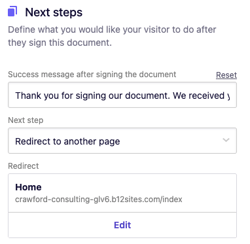
- - You can customize the **Success message after submission** field.
- From the **Next step** dropdown, select one of the following:
- - - **None** - stay on the same page and only display the success message. Note: This action is not recommended for this tool.
- **Complete a form** - go to the selected form.
- **Schedule an appointment** - go to the selected scheduling form.
- **Make a payment** - go to the selected checkout page.
- **Redirect to another page** - go to the specified section / page / URL / media. This is selected by default.
**Note:** Make sure you provide the required details for your chosen step, such as selecting a payment template if you choose **Make a payment**.
6\. Once all required information is added, the **Generate document** button becomes active. Click `Generate document`to open the markup view.
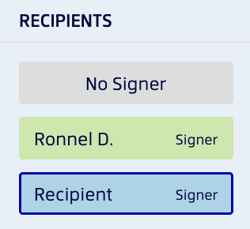
7\. From the **Recipients** panel on the right, select a party. You will be shown in green and your client will be shown in blue.
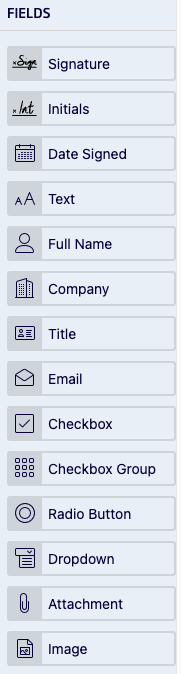
8\. Drag and drop fields such as signature or date fields onto the document.
- Resize or move fields as needed.
- Mark fields as **required** by checking the box at the top left of the document.
9\. When finished, click `Send` in the top-right corner. The document appears in your eSignatures dashboard with the status **Sent**.

- Both you and your client will receive an email from Xodo, B12’s eSignature provider, with a secure link to view and sign the document.
- You’ll also receive notifications when your client opens and signs it.
- Once all parties have signed, both you and your client receive a PDF copy by email, and the document status updates to **Signed**.
- [Getting started](https://support.b12.io/en/getting-started?hsLang=en#main-content)
- [Introduction](https://support.b12.io/en/getting-started?hsLang=en#introduction)
- [Detailed guides](https://support.b12.io/en/getting-started?hsLang=en#detailed-guides)
- [Working with B12's AI Agent](https://support.b12.io/en/working-with-b12s-ai-agent?hsLang=en#main-content)
- [Agent Skills](https://support.b12.io/en/working-with-b12s-ai-agent?hsLang=en#agent-skills)
- [Built-in features](https://support.b12.io/en/built-in-features?hsLang=en#main-content)
- [Visual edit](https://support.b12.io/en/built-in-features?hsLang=en#visual-edit)
- [Code editor](https://support.b12.io/en/built-in-features?hsLang=en#code-editor)
- [Data & users (Backends)](https://support.b12.io/en/built-in-features?hsLang=en#data-users-backends)
- [Forms & submissions](https://support.b12.io/en/built-in-features?hsLang=en#forms-submissions)
- [Commerce](https://support.b12.io/en/built-in-features?hsLang=en#commerce)
- [Contact manager](https://support.b12.io/en/built-in-features?hsLang=en#contact-manager)
- [eSignatures](https://support.b12.io/en/built-in-features?hsLang=en#esignatures)
- [Email Marketing](https://support.b12.io/en/built-in-features?hsLang=en#email-marketing)
- [Team](https://support.b12.io/en/built-in-features?hsLang=en#team)
- [Analytics](https://support.b12.io/en/built-in-features?hsLang=en#analytics)
- [Website settings](https://support.b12.io/en/built-in-features?hsLang=en#website-settings)
- [Adding functionality](https://support.b12.io/en/adding-functionality?hsLang=en#main-content)
- [Third-party integrations](https://support.b12.io/en/adding-functionality?hsLang=en#third-party-integrations)
- [Scheduling & Productivity Integrations](https://support.b12.io/en/adding-functionality?hsLang=en#scheduling-productivity-integrations)
- [Multimedia Integrations](https://support.b12.io/en/adding-functionality?hsLang=en#multimedia-integrations)
- [Publishing & growing](https://support.b12.io/en/publishing-growing?hsLang=en#main-content)
- [Connecting your Domain](https://support.b12.io/en/publishing-growing?hsLang=en#connecting-your-domain)
- [Domains FAQ](https://support.b12.io/en/publishing-growing?hsLang=en#domains-faq)
- [Email Forwarding & Sending](https://support.b12.io/en/publishing-growing?hsLang=en#email-forwarding-sending)
- [Growth & Marketing](https://support.b12.io/en/publishing-growing?hsLang=en#growth-marketing)
- [Troubleshooting](https://support.b12.io/en/troubleshooting?hsLang=en#main-content)
- [FAQs](https://support.b12.io/en/troubleshooting?hsLang=en#faqs)
- [Account & billing](https://support.b12.io/en/account-billing?hsLang=en#main-content)
- [Account Login & Password](https://support.b12.io/en/account-billing?hsLang=en#account-login-password)
- [Subscription & Payment Information](https://support.b12.io/en/account-billing?hsLang=en#subscription-payment-information)
- [Your Account](https://support.b12.io/en/account-billing?hsLang=en#your-account)
- [Managing Multiple Websites](https://support.b12.io/en/account-billing?hsLang=en#managing-multiple-websites)
- [Multi-user](https://support.b12.io/en/account-billing?hsLang=en#multi-user)
- [Getting support](https://support.b12.io/en/getting-support?hsLang=en#main-content)
- [Professional & Advanced Plan Support (B12 2.0)](https://support.b12.io/en/getting-support?hsLang=en#professional-advanced-plan-support-b12-2-0)
- [B12 2.0](https://support.b12.io/en/b12-2-0?hsLang=en#main-content)
- [Website Structure and Content](https://support.b12.io/en/b12-2-0?hsLang=en#website-structure-and-content)
- [Website Style & Design](https://support.b12.io/en/b12-2-0?hsLang=en#website-style-design)
- [Sitewide Settings](https://support.b12.io/en/b12-2-0?hsLang=en#sitewide-settings)
- [Using the B12 Editor](https://support.b12.io/en/b12-2-0?hsLang=en#using-the-b12-editor)
- [Analytics & SEO](https://support.b12.io/en/b12-2-0?hsLang=en#analytics-seo)
- [Integrations - General](https://support.b12.io/en/b12-2-0?hsLang=en#integrations-general)
- [Integrations - Communication](https://support.b12.io/en/b12-2-0?hsLang=en#integrations-communication)
- [Integrations - Language](https://support.b12.io/en/b12-2-0?hsLang=en#integrations-language)
- [Integrations - Ecommerce](https://support.b12.io/en/b12-2-0?hsLang=en#integrations-ecommerce)
- [Professional & Advanced Plan Features](https://support.b12.io/en/b12-2-0?hsLang=en#professional-advanced-plan-features)
- [Troubleshooting & Resources](https://support.b12.io/en/b12-2-0?hsLang=en#troubleshooting-resources)
- [Contact Forms](https://support.b12.io/en/b12-2-0?hsLang=en#contact-forms)
- [Online Scheduling](https://support.b12.io/en/b12-2-0?hsLang=en#online-scheduling)
- [Advanced Editing (Experts Only)](https://support.b12.io/en/b12-2-0?hsLang=en#advanced-editing-experts-only)
[](https://www.b12.io)
© 2025 B12. All rights reserved.
×