---
title: Changing your B12 password
description: Reset your password to access the B12 Editor
---
[Skip to content](https://support.b12.io/en/reset-your-b12-password#main-content)

- [Help Center](https://support.b12.io/)
- [B12 Website](https://www.b12.io/)
- [AI Website Prompts](https://www.b12.io/ai-website-prompt-gallery)
- [Resources](https://www.b12.io/resource-center/)
- [Pricing](https://www.b12.io/pricing/)
- [Log in](https://b12.io/dashboard/)
Open main navigation
Close main navigation
- [Help Center](https://support.b12.io/)
- [B12 Website](https://www.b12.io/)
- [AI Website Prompts](https://www.b12.io/ai-website-prompt-gallery)
- [Resources](https://www.b12.io/resource-center/)
- [Pricing](https://www.b12.io/pricing/)
- [Log in](https://b12.io/dashboard/)
- [Start for free](https://b12.io/signup/)
[Start for free](https://b12.io/signup/)
How can we help?
- There are no suggestions because the search field is empty.
1. [B12 Help Center](https://support.b12.io/en?hsLang=en)
2. [Account & billing](https://support.b12.io/en/account-billing?hsLang=en)
3. [Account Login & Password](https://support.b12.io/en/account-billing?hsLang=en#account-login-password)
# Changing your B12 password
## Learn how to reset your password to access the B12 Editor.
|  Written by: Meredith Last updated: 18 Aug., 2026 |
| --- |
Follow these steps to change your password directly from the B12 Editor.
### Changing your password
1\. Log in to the [B12 Editor](http://b12.io/dashboard).
2\. At the top of the left sidebar, click the `` logo.
.png?width=250&height=250&name=Untitled%20design%20(10).png)
3\. Click `Change password`.
.png?width=250&height=250&name=Untitled%20design%20(12).png)
4\. Enter your current password.
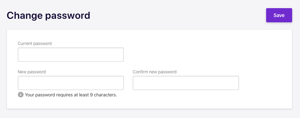
5\. Enter your new password under **New password** and **Confirm new password**
6\. Click `Save`.
### Password requirements
When you set a new password, B12 checks it against a few rules that help keep your account secure.
Your new password must:
- Be different from your personal details, such as your name or email address.
- Contain at least eight characters.
- Avoid common passwords. B12 compares your password against a list of the 20,000 most common passwords and won't accept a match.
- Include more than just numbers. A password made up entirely of digits isn't allowed.
**Note**: Forgot your password? Read our article on [resetting a forgotten password](https://support.b12.io/en/articles/1473201-forgot-my-password?hsLang=en).
- [Getting started](https://support.b12.io/en/getting-started?hsLang=en#main-content)
- [Introduction](https://support.b12.io/en/getting-started?hsLang=en#introduction)
- [Detailed guides](https://support.b12.io/en/getting-started?hsLang=en#detailed-guides)
- [Working with B12's AI Agent](https://support.b12.io/en/working-with-b12s-ai-agent?hsLang=en#main-content)
- [Agent Skills](https://support.b12.io/en/working-with-b12s-ai-agent?hsLang=en#agent-skills)
- [Built-in features](https://support.b12.io/en/built-in-features?hsLang=en#main-content)
- [Visual edit](https://support.b12.io/en/built-in-features?hsLang=en#visual-edit)
- [Code editor](https://support.b12.io/en/built-in-features?hsLang=en#code-editor)
- [Data & users (Backends)](https://support.b12.io/en/built-in-features?hsLang=en#data-users-backends)
- [Forms & submissions](https://support.b12.io/en/built-in-features?hsLang=en#forms-submissions)
- [Commerce](https://support.b12.io/en/built-in-features?hsLang=en#commerce)
- [Contact manager](https://support.b12.io/en/built-in-features?hsLang=en#contact-manager)
- [eSignatures](https://support.b12.io/en/built-in-features?hsLang=en#esignatures)
- [Email Marketing](https://support.b12.io/en/built-in-features?hsLang=en#email-marketing)
- [Team](https://support.b12.io/en/built-in-features?hsLang=en#team)
- [Analytics](https://support.b12.io/en/built-in-features?hsLang=en#analytics)
- [Website settings](https://support.b12.io/en/built-in-features?hsLang=en#website-settings)
- [Adding functionality](https://support.b12.io/en/adding-functionality?hsLang=en#main-content)
- [Third-party integrations](https://support.b12.io/en/adding-functionality?hsLang=en#third-party-integrations)
- [Publishing & growing](https://support.b12.io/en/publishing-growing?hsLang=en#main-content)
- [Domains](https://support.b12.io/en/publishing-growing?hsLang=en#domains)
- [Connecting your Domain](https://support.b12.io/en/publishing-growing?hsLang=en#connecting-your-domain)
- [Managing Your Domain](https://support.b12.io/en/publishing-growing?hsLang=en#managing-your-domain)
- [Email Forwarding & Sending](https://support.b12.io/en/publishing-growing?hsLang=en#email-forwarding-sending)
- [Growth & Marketing](https://support.b12.io/en/publishing-growing?hsLang=en#growth-marketing)
- [Troubleshooting](https://support.b12.io/en/troubleshooting?hsLang=en#main-content)
- [FAQs](https://support.b12.io/en/troubleshooting?hsLang=en#faqs)
- [Account & billing](https://support.b12.io/en/account-billing?hsLang=en#main-content)
- [Account Login & Password](https://support.b12.io/en/account-billing?hsLang=en#account-login-password)
- [Subscription & Payment Information](https://support.b12.io/en/account-billing?hsLang=en#subscription-payment-information)
- [Your Account](https://support.b12.io/en/account-billing?hsLang=en#your-account)
- [Managing Multiple Websites](https://support.b12.io/en/account-billing?hsLang=en#managing-multiple-websites)
- [Multi-user](https://support.b12.io/en/account-billing?hsLang=en#multi-user)
- [Getting support](https://support.b12.io/en/getting-support?hsLang=en#main-content)
- [Professional & Advanced Plan Support (B12 2.0)](https://support.b12.io/en/getting-support?hsLang=en#professional-advanced-plan-support-b12-2-0)
- [B12 2.0](https://support.b12.io/en/b12-2-0?hsLang=en#main-content)
- [Website Structure and Content](https://support.b12.io/en/b12-2-0?hsLang=en#website-structure-and-content)
- [Website Style & Design](https://support.b12.io/en/b12-2-0?hsLang=en#website-style-design)
- [Sitewide Settings](https://support.b12.io/en/b12-2-0?hsLang=en#sitewide-settings)
- [Using the B12 Editor](https://support.b12.io/en/b12-2-0?hsLang=en#using-the-b12-editor)
- [Analytics & SEO](https://support.b12.io/en/b12-2-0?hsLang=en#analytics-seo)
- [Integrations - General](https://support.b12.io/en/b12-2-0?hsLang=en#integrations-general)
- [Integrations - Communication](https://support.b12.io/en/b12-2-0?hsLang=en#integrations-communication)
- [Integrations - Language](https://support.b12.io/en/b12-2-0?hsLang=en#integrations-language)
- [Integrations - Ecommerce](https://support.b12.io/en/b12-2-0?hsLang=en#integrations-ecommerce)
- [Professional & Advanced Plan Features](https://support.b12.io/en/b12-2-0?hsLang=en#professional-advanced-plan-features)
- [Troubleshooting & Resources](https://support.b12.io/en/b12-2-0?hsLang=en#troubleshooting-resources)
- [Contact Forms](https://support.b12.io/en/b12-2-0?hsLang=en#contact-forms)
- [Online Scheduling](https://support.b12.io/en/b12-2-0?hsLang=en#online-scheduling)
- [Advanced Editing (Experts Only)](https://support.b12.io/en/b12-2-0?hsLang=en#advanced-editing-experts-only)
[](https://www.b12.io)
© 2025 B12. All rights reserved.
×