---
title: Sending contracts and collecting eSignatures
description: Sign contracts and other documents with B12's eSignatures tool
---
[Skip to content](https://support.b12.io/en/sending-contracts-and-collecting-esignatures#main-content)
[](https://support.b12.io/en?hsLang=en)
- [B12 Website](https://www.b12.io/)
- Products
Show submenu for Products
- [AI Builder](https://www.b12.io/ai-website-builder)
- [Templates](https://www.b12.io/ai-website-prompt-gallery)
- [Resources](https://www.b12.io/resource-center)
- [Pricing](https://www.b12.io/pricing)
- [Log in](https://b12.io/dashboard/)
Open main navigation
Close main navigation
- [B12 Website](https://www.b12.io/)
- Products
Show submenu for Products
- [AI Builder](https://www.b12.io/ai-website-builder)
- [Templates](https://www.b12.io/ai-website-prompt-gallery)
- [Resources](https://www.b12.io/resource-center)
- [Pricing](https://www.b12.io/pricing)
- [Log in](https://b12.io/dashboard/)
- [Start for free](https://b12.io/signup/)
[Start for free](https://b12.io/signup/)
How can we help?
- There are no suggestions because the search field is empty.
1. [B12 Help Center](https://support.b12.io/en?hsLang=en)
2. [Built-in features](https://support.b12.io/en/built-in-features?hsLang=en)
3. [eSignatures](https://support.b12.io/en/built-in-features?hsLang=en#esignatures)
# Sending contracts and collecting eSignatures
## Learn how to send contracts and documents for signing using B12’s eSignatures tool.
|  Written by: Meredith Last updated: 16 Oct., 2026 |
| --- |
You and your clients can sign contracts and documents directly through a secure link.
**Note:** eSignatures requires at least one Client Engagement seat.
There are no monthly limits on the number of documents you can send or eSignatures you can collect.
**Tip:** If you want to reuse a document in the future, consider creating a template instead. [Learn how to create a template.](https://support.b12.io/en/articles/7354798-how-to-create-and-use-templates-for-esignature?hsLang=en)
### Creating a new contract document
1\. In the left sidebar menu, click `eSignatures`.
2\. Click `Create a new document`.
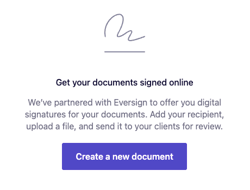
**Note:** If you've created a document previously, click `+New Document` in the top right corner.
3. Click `Blank document`.
- Enter the document name.
- Select signatories.
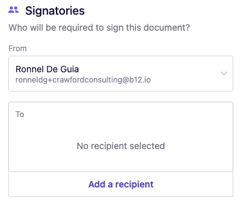
- - You can customize the sender from the **From** section.
- Click **Add a recipient** to add a recipient from your existing list, or you can create a new one by clicking **Add new**.
- Upload a PDF document. Optionally, you can add a **Signer PIN**.
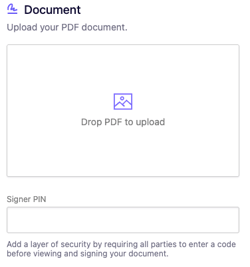
**Note:** The Signer PIN is a way to make sure your document is secure. Add a layer of security by requiring all parties to enter a code before viewing and signing your document. Share the PIN with your client by phone (most secure) or by text.
- Next steps functionality helps you customize and control what happens after your client performs a certain action on your website, such as signing a document.
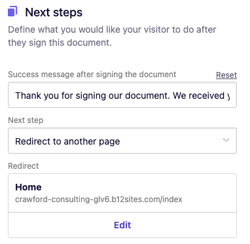
- - You can customize the **Success message after submission** field.
- From the **Next step** dropdown, select one of the following:
- - - **None** - stay on the same page and only display the success message. Note: This action is not recommended for this tool.
- **Complete a form** - go to the selected form.
- **Schedule an appointment** - go to the selected scheduling form
- **Make a payment** - go to the selected checkout page
- **Redirect to another page** - go to the specified section / page / URL / media. This is selected by default.
**Note:** Make sure you provide the required details for your chosen step, such as selecting a payment template if you choose **Make a payment**.
4. Once all required information is added, the **Generate document** button becomes active. Click `Generate document`to open the markup view.
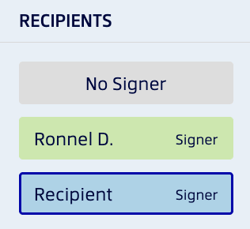
5\. From the **Recipients** panel on the right, select a party. You will be shown in green and your client will be shown in blue.
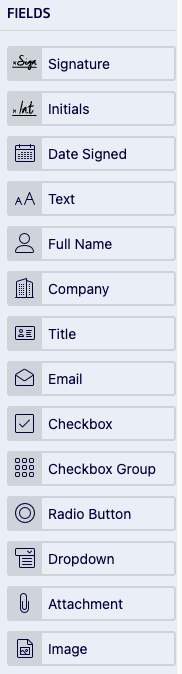
6\. Drag and drop fields such as signature or date fields onto the document.
- Resize or move fields as needed.
- Mark fields as **required** by checking the box at the top left of the document.
7\. When finished, click `Send` in the top-right corner. The document appears in your eSignatures dashboard with the status **Sent**.

- Both you and your client will receive an email from Xodo, B12’s eSignature provider, with a secure link to view and sign the document.
- You’ll also receive notifications when your client opens and signs it.
- Once all parties have signed, both you and your client receive a PDF copy by email, and the document status updates to **Signed**.
- [Getting started](https://support.b12.io/en/getting-started?hsLang=en#main-content)
- [Introduction](https://support.b12.io/en/getting-started?hsLang=en#introduction)
- [Detailed guides](https://support.b12.io/en/getting-started?hsLang=en#detailed-guides)
- [Working with B12's AI Agent](https://support.b12.io/en/working-with-b12s-ai-agent?hsLang=en#main-content)
- [Agent Skills](https://support.b12.io/en/working-with-b12s-ai-agent?hsLang=en#agent-skills)
- [Built-in features](https://support.b12.io/en/built-in-features?hsLang=en#main-content)
- [Visual edit](https://support.b12.io/en/built-in-features?hsLang=en#visual-edit)
- [Code editor](https://support.b12.io/en/built-in-features?hsLang=en#code-editor)
- [Data & users (Backends)](https://support.b12.io/en/built-in-features?hsLang=en#data-users-backends)
- [Forms & submissions](https://support.b12.io/en/built-in-features?hsLang=en#forms-submissions)
- [Commerce](https://support.b12.io/en/built-in-features?hsLang=en#commerce)
- [Contact manager](https://support.b12.io/en/built-in-features?hsLang=en#contact-manager)
- [eSignatures](https://support.b12.io/en/built-in-features?hsLang=en#esignatures)
- [Email Marketing](https://support.b12.io/en/built-in-features?hsLang=en#email-marketing)
- [Team](https://support.b12.io/en/built-in-features?hsLang=en#team)
- [Analytics](https://support.b12.io/en/built-in-features?hsLang=en#analytics)
- [Website settings](https://support.b12.io/en/built-in-features?hsLang=en#website-settings)
- [Adding functionality](https://support.b12.io/en/adding-functionality?hsLang=en#main-content)
- [Third-party integrations](https://support.b12.io/en/adding-functionality?hsLang=en#third-party-integrations)
- [Multimedia Integrations](https://support.b12.io/en/adding-functionality?hsLang=en#multimedia-integrations)
- [Publishing & growing](https://support.b12.io/en/publishing-growing?hsLang=en#main-content)
- [Domains](https://support.b12.io/en/publishing-growing?hsLang=en#domains)
- [Connecting your Domain](https://support.b12.io/en/publishing-growing?hsLang=en#connecting-your-domain)
- [Managing Your Domain](https://support.b12.io/en/publishing-growing?hsLang=en#managing-your-domain)
- [Email Forwarding & Sending](https://support.b12.io/en/publishing-growing?hsLang=en#email-forwarding-sending)
- [Growth & Marketing](https://support.b12.io/en/publishing-growing?hsLang=en#growth-marketing)
- [Troubleshooting](https://support.b12.io/en/troubleshooting?hsLang=en#main-content)
- [FAQs](https://support.b12.io/en/troubleshooting?hsLang=en#faqs)
- [Account & billing](https://support.b12.io/en/account-billing?hsLang=en#main-content)
- [Account Login & Password](https://support.b12.io/en/account-billing?hsLang=en#account-login-password)
- [Subscription & Payment Information](https://support.b12.io/en/account-billing?hsLang=en#subscription-payment-information)
- [Your Account](https://support.b12.io/en/account-billing?hsLang=en#your-account)
- [Managing Multiple Websites](https://support.b12.io/en/account-billing?hsLang=en#managing-multiple-websites)
- [Multi-user](https://support.b12.io/en/account-billing?hsLang=en#multi-user)
- [Getting support](https://support.b12.io/en/getting-support?hsLang=en#main-content)
- [Professional & Advanced Plan Support (B12 2.0)](https://support.b12.io/en/getting-support?hsLang=en#professional-advanced-plan-support-b12-2-0)
- [B12 2.0](https://support.b12.io/en/b12-2-0?hsLang=en#main-content)
- [Website Structure and Content](https://support.b12.io/en/b12-2-0?hsLang=en#website-structure-and-content)
- [Website Style & Design](https://support.b12.io/en/b12-2-0?hsLang=en#website-style-design)
- [Sitewide Settings](https://support.b12.io/en/b12-2-0?hsLang=en#sitewide-settings)
- [Using the B12 Editor](https://support.b12.io/en/b12-2-0?hsLang=en#using-the-b12-editor)
- [Analytics & SEO](https://support.b12.io/en/b12-2-0?hsLang=en#analytics-seo)
- [Integrations - General](https://support.b12.io/en/b12-2-0?hsLang=en#integrations-general)
- [Integrations - Communication](https://support.b12.io/en/b12-2-0?hsLang=en#integrations-communication)
- [Integrations - Language](https://support.b12.io/en/b12-2-0?hsLang=en#integrations-language)
- [Integrations - Ecommerce](https://support.b12.io/en/b12-2-0?hsLang=en#integrations-ecommerce)
- [Professional & Advanced Plan Features](https://support.b12.io/en/b12-2-0?hsLang=en#professional-advanced-plan-features)
- [Troubleshooting & Resources](https://support.b12.io/en/b12-2-0?hsLang=en#troubleshooting-resources)
- [Contact Forms](https://support.b12.io/en/b12-2-0?hsLang=en#contact-forms)
- [Online Scheduling](https://support.b12.io/en/b12-2-0?hsLang=en#online-scheduling)
- [Advanced Editing (Experts Only)](https://support.b12.io/en/b12-2-0?hsLang=en#advanced-editing-experts-only)
[](https://www.b12.io)
© 2025 B12. All rights reserved.
×