
|
Written by: Ronnel DG |

Contact forms let visitors send messages directly from your website. By default, the AI Agent creates forms that use B12's native form functionality. When someone submits a form, their information is saved in your B12 Dashboard, and both you and the visitor receive a confirmation email.
Tip: The AI Agent will often include a basic contact form in your initial website draft, even if you didn't request one. If you have specific requirements for your contact form, be sure to include those in your initial website description.
Adding a contact form
You can add a form to any page on your website using the AI Agent. The AI Agent creates forms that work with B12's native form functionality by default, so submissions, notifications, and contact records are automatically connected.
- In the AI Agent chat, type a prompt and describe the form you want.
Example prompt:Add a contact form with fields for name, email, and message.
- Review the form the AI Agent creates. Ask the AI Agent to adjust any fields or layout as needed.
- Test the form to check if you are receiving responses from it.
- Click
Publishto make your changes live.
Tip: Be specific when describing your form. You can ask the AI Agent to include a phone number field, a dropdown menu, or a specific label for each field.
Editing a contact form
You can edit an existing form at any time by prompting the AI Agent. Use the AI Agent to add or remove fields, change field labels, reorder fields, or update the form's heading or button text.
Adding a form field
When adding a field, include:
-
-
-
The field type
-
-
The field label
-
Any options
-
Whether it’s required
-
Validation or formatting rules (if needed)
-
Add checkboxes labeled “Services needed” with options: Website design, SEO, Branding, Ongoing support.
Form field types
The following field types are available. Include the field type in your prompt to get the result you want.
| Field type | Description | Prompt examples |
|---|---|---|
| Address | Multi-part input for a street address |
Add an address field for the visitor's location. |
| Checkboxes | Multiple-choice selection |
Add checkboxes for the visitor to select all services they're interested in. |
| Date | Calendar input for selecting a date |
Add a date field for the visitor's preferred appointment date. |
| Date and time | Calendar and time input combined |
Add a date and time field for the visitor to request a specific meeting time. |
| Dropdown | Single-choice selection from a list of options |
Add a dropdown field asking how the visitor heard about us, with options: Google, Referral, Social Media, Other. |
| Single-line input formatted for email addresses |
Add an email field so we can follow up with the visitor. |
|
| Long text | Multi-line input for detailed responses |
Add a long text field for the visitor's message. |
| Name | Single-line input for collecting a visitor’s full name. |
Add a name field with separate inputs for the visitor’s first name and last name. |
| Number | Input that accepts numeric values only |
Add a number field asking how many guests will attend. |
| Phone number | Input formatted for phone numbers |
Add a phone number field with a country dropdown that includes country codes, plus a separate input for the rest of the number that validates the format based on the selected country. |
| Radio buttons | Single-choice selection displayed as visible options |
Add radio buttons asking the visitor's preferred contact method: Phone or Email. |
| Short text | Single-line input for brief answers |
Add a short text field for the visitor's name. |
| URL | Single-line input formatted for web addresses |
Add a URL field asking for the visitor’s website that validates a properly formatted web address. |
Removing form fields
Use a direct instruction that clearly identifies the field.
Remove the phone number field from the contact form.
Editing field settings
You can modify requirements, order, labels, and validation rules.
-
Making a field required or optional
Make the email field required.
-
Changing the field label
Change the label of the short text field to “Company name.”
-
Reordering fields
Move the message field to the bottom of the form.
Customizing email notifications and next step
You can also adjust the form title, automated emails, and post-submission behavior using Visual Edit.
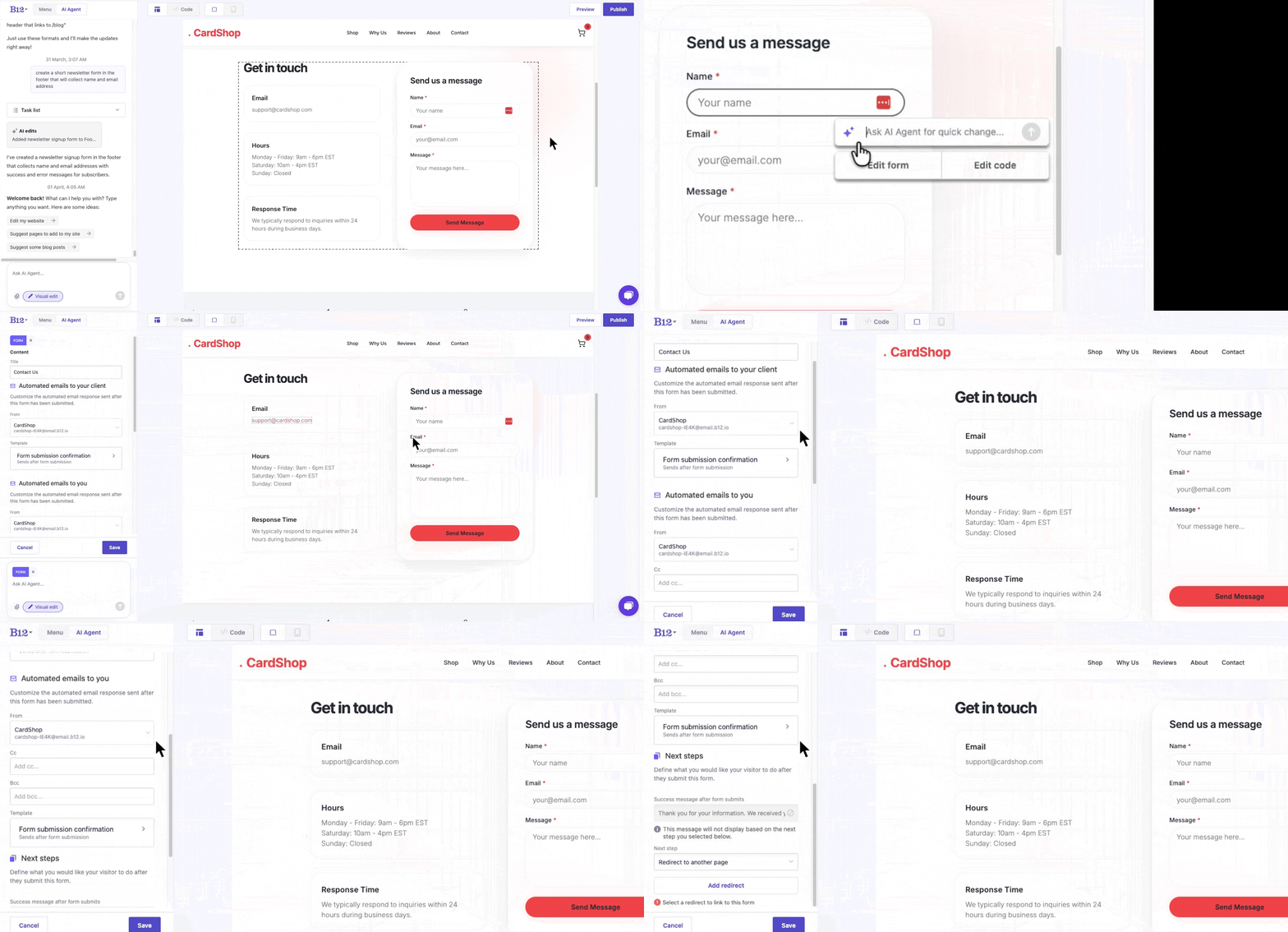
- In the AI Agent chat, click
.svg) Visual Edit
Visual Edit - Click the form you want to edit. A pop-up appears.
- Click
Edit form. The left sidebar opens with editing options. You can edit the following:
- Title — Change the title of your form.
- Automated emails to your client — Customize the automated email your client receives after submitting the form.
-
- From — Set the sender name or email address your client will see.
- Template — Enable or disable the email template, edit the subject line, and modify the email content. Click
Savewhen done.
-
Automated emails to you — Customize the automated email you receive when a form is submitted.
-
- From, Cc, Bcc — Set the sender and any additional recipients.
- Template — Enable or disable the email template, edit the subject line, and modify the email content. Click
Savewhen done.
-
Next steps — Customize what happens after a visitor submits the form.
-
- Success message — Set the message displayed to the visitor after a successful submission.
- Next step — Select
Noneto show only the success message, or selectRedirect to a pageto send visitors to another URL.- If you select redirect, click
Add redirect, then paste the destination URL underLinks to.
- If you select redirect, click
Tip: You can change your form’s typography. Turn on visual edit, click on the text element you want to update, and then adjust its settings in the left sidebar. For more information, see this article.
After updating your form settings, submit a test entry to confirm everything works as expected. Check that the success message appears correctly and that both you and your client receive the automated emails. If anything looks off, return to Visual Edit and adjust your form settings as needed.
What happens when a form is submitted
When a visitor submits a form on your website, B12 handles the following automatically:
- Invisible reCAPTCHA runs in the background to help filter out spam. Visitors won't see a challenge unless Google's systems flag the submission as suspicious.
- The submission is saved to Form Submissions in your Dashboard.
- A new contact is created in the Contact Manager, if you have a Client Engagement seat and the form captures the visitor's email address.
- Notification emails are sent to both you and the visitor (see Understanding notification emails below).
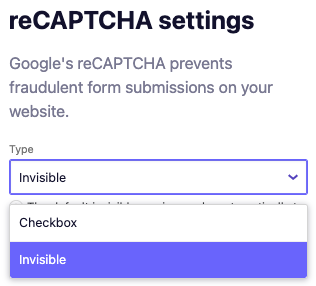
Note: Invisible reCAPTCHA is automatically included on all B12 contact forms. You can set it to appear as a checkbox by going to  Settings
Go to settings. Under Type, click Checkbox, then click Save.
Viewing form submissions
- In the left sidebar menu, go to
 Form Submissions
 - Select a submission to view the details, including the submitter's name, email address, and any other information they entered.
Note: If a submission appears as Anonymous, the name and email address fields were not correctly identified. Anonymous submissions do not generate a contact record in the Contact Manager and do not send submission confirmation emails.
You can fix ithis by prompting the AI Agent to correctly map these fields:
The form submissions on my [Page Name] are appearing as 'Anonymous' in the Contact Manager. Please recreate the form as a standard B12 form or update the Name and Email fields so they are correctly identified and mapped to the contact record. Ensure that every submission correctly generates a contact record in the Contact Manager.
Understanding notification emails
B12 automatically sends notification emails when a form is submitted.
Two emails are sent with each submission:
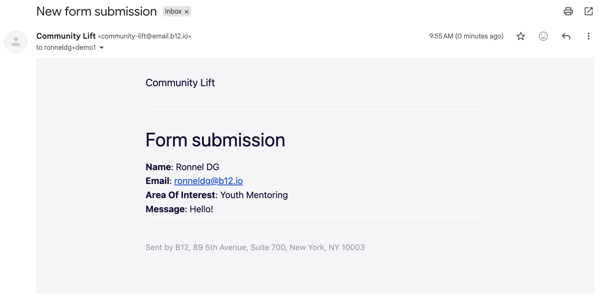
- You (the account admin) receive a copy of the submission at your B12 account email address.
- The visitor receives a confirmation email only if the form captured their email address. Anonymous submissions do not receive a confirmation.

Note: Your account admin email address will always receive form submission notifications. There is currently no option to remove this address, or add recipients.
Current limitations
Keep the following in mind when using contact forms on B12:
- File uploads are not supported. A file upload field may be created in the editor, but it will not function on your published website.
Caution: Do not use contact forms to collect sensitive personal information such as Social Security numbers, passwords, or financial account details. Read more here.
Advanced form options
If you need more flexibility, such as conditional logic, custom automation, or a different visual layout, consider adding a third-party form integration instead.
For instructions, see adding third-party form integrations.