
 Written by Katelyn Gray Last updated: 08 Jan., 2026 |
This service is available to customers on the Professional and Advanced subscriptions. View plans and pricing here. |
Claiming your listings lets you control how your business appears on sites like Google Maps, Facebook, Yelp, and Bing. Once claimed, your listings sync through the Listings Manager so your information stays accurate and consistent.
Claiming your listings
1. Log in to your listings manager dashboard.
2. Click Listings, then open the Premium Listings page.
Note: You should have received an email invitation to access the Listings Manager. If you cannot find the email, reset your password here.
3. In the dashboard, locate the Requiring Action section. Click Requiring Action to view listings that show a Connect Account option.
4. For each listing that needs to be claimed, click Connect Account.
Note: Claiming steps vary by platform. Some listings require proof that you own or manage the business.
5. Return to the Premium Listings page to confirm the claim.
Look for Listing Synced or Listing Sync In Progress where Connect Account previously appeared.
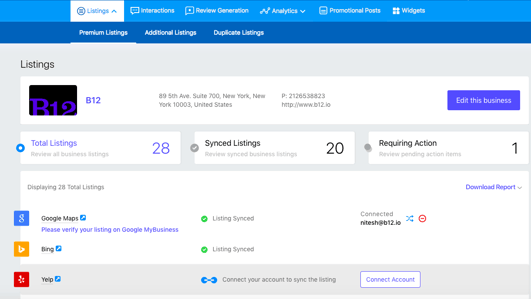
Once you’ve claimed a listing, you can view its details in your listings manager dashboard. It may take a few hours for your listing to finish syncing.