
|
Written by Katelyn Gray |
This feature requires at least one Client Engagement seat. View plans and pricing here. |

The Contact Manager shows all of your contacts in one table, making it easy to review information, make updates, and take bulk actions like deleting or exporting contacts.
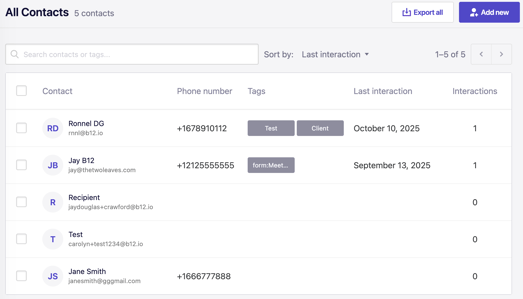
When you open Contact Manager, you can see:
-
A search bar to find contacts by name, email, phone number, or tag
-
Sorting options to organize contacts by Last interaction or Contact name
-
Action buttons in the upper-right corner, including
Export allandAdd new -
A contacts table with columns for Contact, Phone number, Tags, Last interaction, and Interactions
-
Checkboxes on the far left of each row for selecting multiple contacts
When you hover over a contact’s row, action icons appear in the Interactions column.
Editing or deleting a single contact
1. In the left sidebar menu, go to  Contact Manager
2. Hover over the contact you want to manage. In the Interactions column, click the pencil icon 

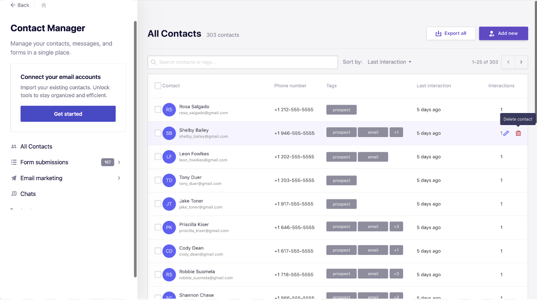
If editing, update the contact’s name, email address, phone number, or tags as needed. You can also mark the contact as unsubscribed from email marketing.
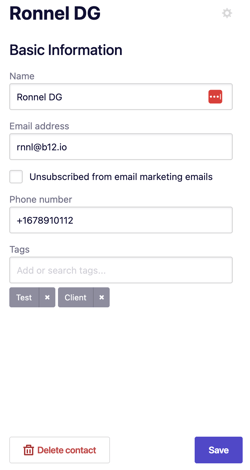
3. Click Save to apply changes, or confirm deletion when prompted.
Deleting multiple contacts
1. In the left sidebar menu, go to
2. In the contacts table, select the checkboxes next to the contacts you want to remove.
3. Click Delete at the top of the table.
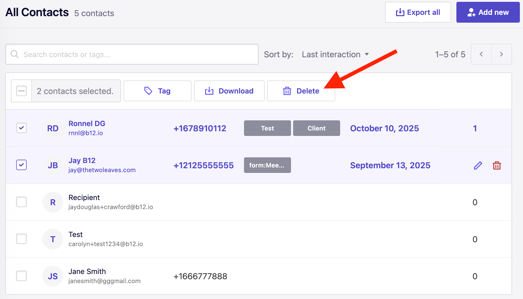
4. Click Yes, delete to confirm.
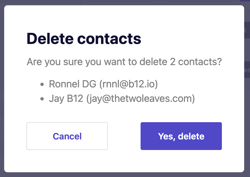
To delete all contacts at once, select the checkbox at the top of the table, then click Delete and confirm.
Exporting contacts
1. Select the checkbox next to one or more contacts.
2. Click Download at the top of the contacts table.
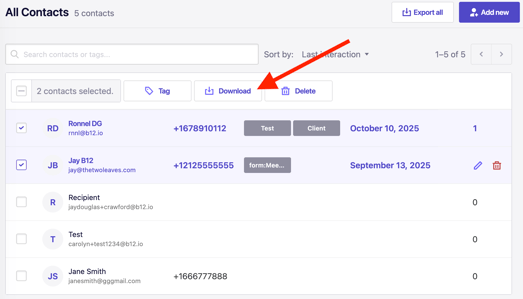
To export your entire contact list, click Export all in the upper-right corner. A CSV file downloads to your device, usually in your Downloads folder.