
|
Written by: Meredith Last updated: 16 Oct., 2026 |

Uploading a document as a template allows you to reuse it multiple times instead of recreating it from scratch. Recipients can then complete and sign the fields you’ve designated.
Note: To upload your document template, you will need to have it saved as a PDF.
Creating an eSignature template
1. In the left sidebar menu, go to  eSignatures
 Templates
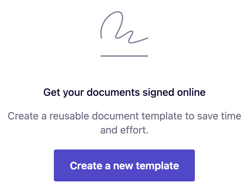
2. Click Create new template.
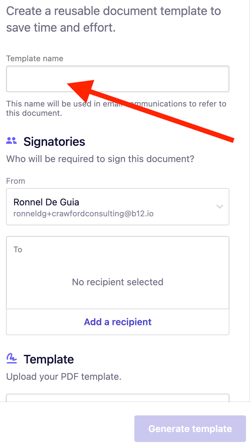
3. Enter a name for the template under Template name.
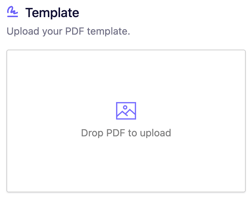
4. Under Template, upload the PDF of your document.
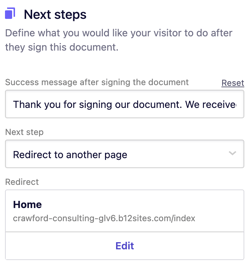
5. Under Next Steps, confirm what the visitor should see or do after signing the document with eSignature.
6. Click Generate template. Your template will be generated in a few seconds.
7. Use the interface on the right side to add fields:
-
Click the green box to add fields for you (the sender).
-
Click the blue box to add fields for the recipient.
-
Drag each field to its proper location in the document.
-
To undo an action, press
Command+Z(Mac) orControl+Z(Windows).
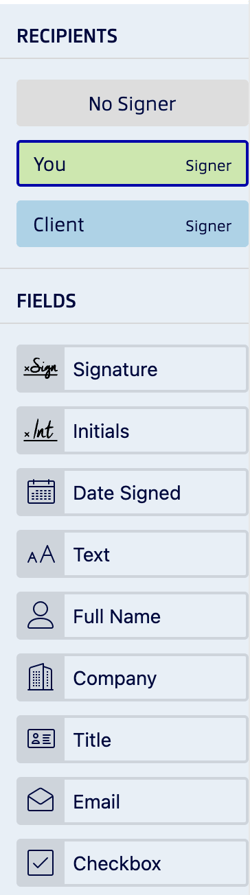
8. When done adding fields, click Save.
Using an eSignature template
1. In the left sidebar menu, go to
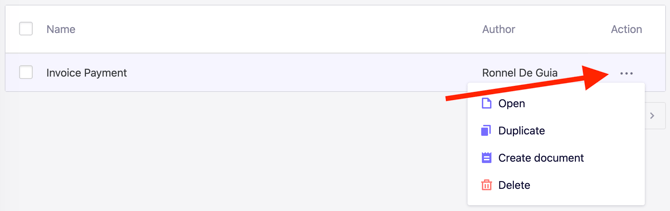
2. Click the meatball button ⋯ next to your template, then select Create document.
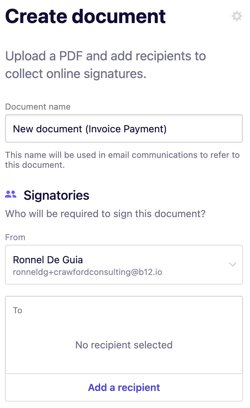
3. Edit the document name. The name will appear in the email your client receives, so you can personalize it by including the client’s name.
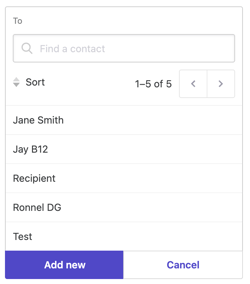
4. Click Add a recipient, then select an existing contact or click Add new.
5. Click Generate document.
6. Review the document, then click Send in the top-right corner.
The document will now appear in your eSignatures dashboard with a Sent status.
After sending, both you and the recipient will receive an email from Xodo Sign (formerly Eversign), our trusted eSignature provider. Each email includes a link to view and sign the document.
You’ll also receive email notifications when the recipient opens or signs the document. Once both parties have signed, both will receive a final email with the completed PDF of the signed document, and the document’s status will update to Signed.