
|
Written by: Madeline B. Last updated: 25 Dec., 2025 |

Each service on your site has its own automatically generated page based on a default template. If you prefer to use a different page layout or link a service to an external website, you can disconnect the service from its template and add your own link.
Note: If you want to create a new page for your service, start by adding a new page.
Linking a new page to a service
1. In the left sidebar menu, click  Website
 Pages
Pages
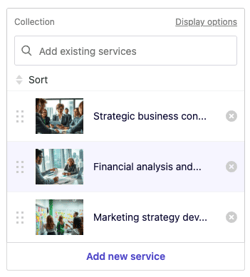
2. Select the page that contains your services section. Click the service you'd like to link your new page to.
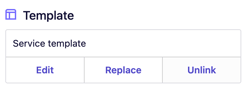
3. Scroll down to  Template
Unlink.
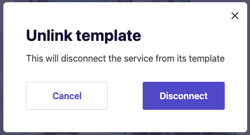
4. Click Disconnect.
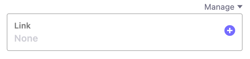
5. A new Link field will be created automatically. Scroll up to find it and click the 
6. Enter the link Text, choose the Link type, and select a destination under Links to. 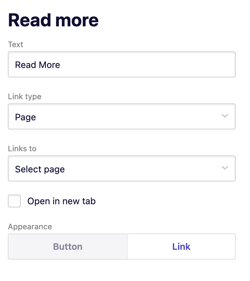
-
Choose Page to link to another page on your B12 website.
-
Choose External website URL to send visitors to another site.
-
Choose whether the link opens in a new tab and whether it should appear as a button.
7. Click Publish in the upper-right corner to make your changes live.