|
Written by: Jay D. Last updated: 16 Mar., 2026 |

You can edit images directly within B12 using built-in tools to crop, rotate, apply filters, and add metadata like alt text.
Editing an image
1. In the left sidebar, select .svg) Visual edit
Visual edit
2. Click to select the image you want to edit, then choose Edit.
3. Make your desired changes (crop, flip, rotate, or filter), then click Save to store the new image.
4. Click Save again to update your site with the new image.
Cropping an image
1. After opening the image editor (see above), select Crop image.
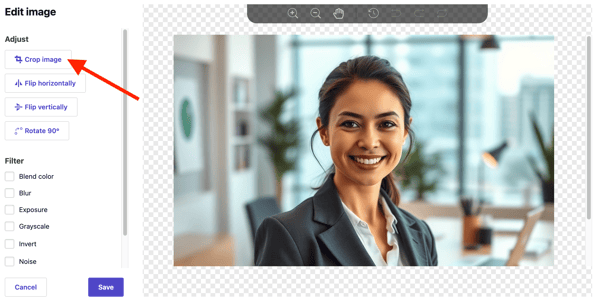
5. Select the area you would like to crop the image to on the right.

6. Once you have that selected, click Crop selection.

The cropped image will appear on the preview pane. Feel free to adjust cropping if needed.

7. Click Save to store the new image, then click Save to update your site.
Editing image metadata
1. In the left sidebar, select
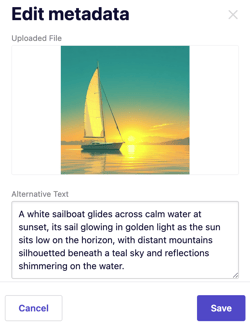
2. Click to select the image you want to edit, then choose Metadata.
3. Enhance accessibility and SEO by adding Alternative (Alt) text, which describes the image for screen readers, then click Save.
Replacing an image
1. In the left sidebar, select
2. Click to select the image you want to edit, then choose Replace.
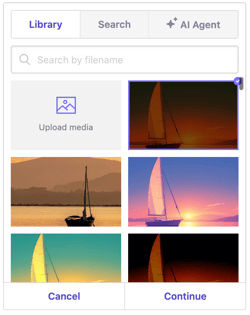
4. Choose one of the following options:
- Library: Choose an image you uploaded previously or upload a new image. To upload click
Upload media. Select your image, then clickContinue. All uploaded files are stored in your Library for future use. ClickSaveto update.
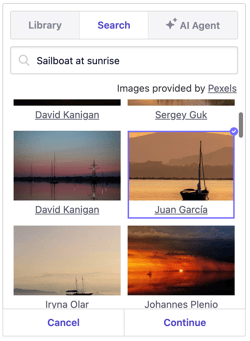
- Search: Use free, open-license images from Pexels. Type a keyword in the Search free photos field, select your image, then click
Continue. ClickSaveto update.
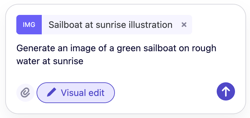
- AI Agent: Generate an AI image that fits your vision. Click Ask AI Agent to generate an image. Type a detailed description of your image starting with Generate an image of... then click the up arrow
 . The AI Agent will create a new image and replace the previous one automatically.
Note: Generating an image with the AI Agent uses AI credits.