
|
|

B12 3.0 gives you two ways to edit your site: describe changes to the AI Agent in natural language, or edit the code (e.g., HTML, CSS, JavaScript) directly for precise control.
Choose your editing method
Use the AI Agent when:
- You want to update copy, layout, or page structure
- You're making directional changes like improving spacing or rewriting sections
- You want AI to handle implementation
- You're not comfortable editing code
Edit code directly when:
- You need exact control over styling or layout
- You're making a small, targeted adjustment
- You're comfortable working with HTML and CSS
- The AI Agent didn't produce the result you wanted
Warning: Incorrect code edits can break your site's layout or functionality. Update your code carefully and be ready to restore a previous version if something goes wrong.
Edit code directly
For users comfortable with HTML and CSS, you can edit code directly for maximum control.
To edit the code for a specific part of your site, open the code editor directly from that element.
Note: You must turn on Visual Edit mode before you can select elements.
To edit code for a specific element:
- In the AI Agent chat, click
 Visual edit
- Click to select the element you want to edit (e.g. text, image, button)
- In the popout menu, select
Edit Code. The code editor opens and highlights the exact code that controls the selected element. - Make your changes in the code editor.
- Select
Save.
Your updates apply immediately after you save and are logged in the AI Agent chat with a restore point.
For broader or sitewide changes, switch to full Code view.
When to use Code view:
- Make changes across multiple sections
- Edit sitewide CSS or JavaScript
- Add custom functionality
- Make structural HTML changes
- Work with advanced customizations
To edit code in Code view:
- At the top of the website preview, select
 Code
Code
- Make your changes in the code editor.
- Click
Saveto apply your updates.
Note: Changes made in Code view aren't applied until you save. If you leave the page without saving, your changes are lost.
After you save, the AI Agent logs the update and automatically creates a restore point.
Restoring a previous version
If a change causes problems, you can restore your site to an earlier version.
- In the left sidebar, find the message linked to the change you want to undo.
- Click
Restore.
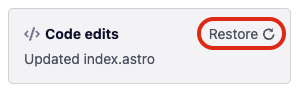
Your site will revert to that earlier version. All other changes since then will be undone.
Tip: You can restore versions in any order, including returning to a more recent version. If the version you chose is not correct or does not solve your problem, try restoring a different version instead.