
 Written by: Jay Douglas
Last updated: 16 Oct., 2026
|
To change your card, go straight to Billing & subscription and log in.
If you are already logged in, follow these steps to update your payment method:
Important: If you are on a mobile device, please follow these instructions.
Updating payment method
1. Log in to your B12 website editor.
If you can't remember your password, click here to reset your password.
2. At the top of the left sidebar menu, click the 
.png?width=250&height=250&name=Untitled%20design%20(10).png)
3. Click Billing & subscription.
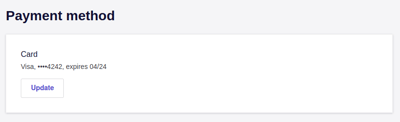
4. In the Payment method section, click Update.
5. Enter your new payment details through our partner, Stripe, and click Add.
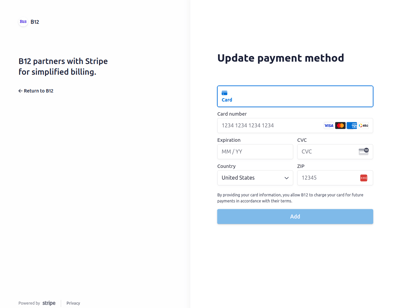
Note: If you pay by bank account, the payment takes 3 to 5 business days to clear. A pending bank payment can't be changed or cancelled.
Need help? If you have trouble updating your payment method:
-
Use the chat widget in the bottom-right corner of your website editor, or