
|
Written by: Madeline B. Last updated: 26 Dec., 2025 |

B12 uses templates for product and service pages to keep layouts consistent across your site. While templates define the structure of the page, you can control what content appears in each field.
Mapping content lets a field automatically display product- or service-specific information, such as the name or price.
Unmapping content lets you show the same static text or images on every page that uses the template.
Mapping content
You also have the option to decide what text or photos accompany the template. We call this mapping. When you map a field of the website editor, you’re telling it what content to display on the page.
For example, you can map the Title to show the product or service's name, or you can set the Title to always display the same text, no matter the product or service.
1. In the left sidebar menu, go to  Website
 Pages
Pages
2. Scroll down to the section labeled Product pages or Service pages. Select any product or service from the list.
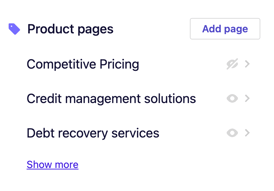
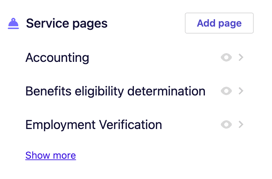
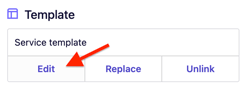
3. Scroll to Template, then click Edit.
4. Click Product Template or Service Template from your list of sections.
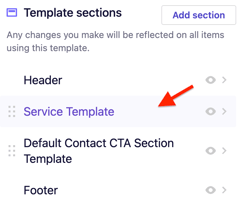
You will then see a section labeled Content; this is where you will do the mapping.
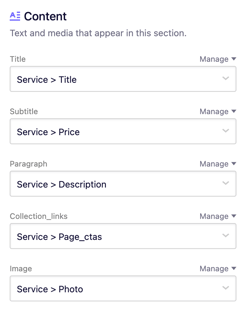
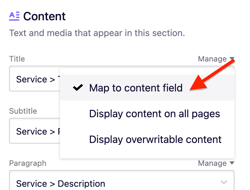
5. Click Manage beside the field you want to map, then select Map content to field.
6. You can then select which field you want this area to display automatically, such as Title or Price.
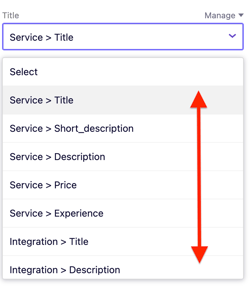
Note: Mapped content will display different content on each page relating to the specific product or service.
7. Click Publish to make your changes live.
Unmapping content
1. In the left sidebar menu, go to
2. Scroll down to the section labeled Product pages or Service pages. Select any product or service from the list.
3. Scroll to Template, then click Edit.
4. Click Product Template or Service Template from your list of sections.
You will then see a section labeled Content; this is where you will do the unmapping.
5. Click Manage beside the field you want to map, then select Display content on all pages.
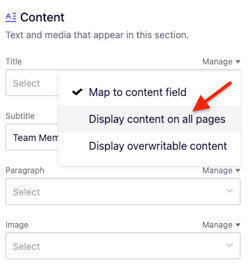
6. You will then be able to draft content in that field. Unmapped content will display the same static content on all pages using your template regardless of the product or service.
7. ClickPublish to make your changes live.