
 Written by: Ronnel DG Last updated: 14 Feb., 2026 |
This article relates to B12's latest version (released Feb. 2026), Websites 3.0, which is still in beta. Contact our Support Team to learn more. |
Websites 3.0 is designed to be straightforward, but you may encounter issues as you build and edit your site. Most issues can be resolved by being more specific in your prompts, using Visual Edit mode, refreshing your browser, or using restore points to undo unwanted changes.
Website generation issues
The website failed to generate
Your initial website was not successfully created or the AI Agent isn't successful with the changes you requested (Error: Build unsuccessful).
Solution:
- Click AI fix in the AI Agent chat to automatically resolve detected issues.
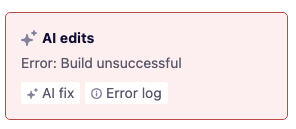
To review the details, click Error log to see a list of errors and where they occurred.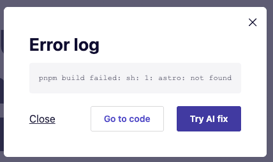
Click Go to code to open the exact location of the issue, or click Try AI fix to let the Agent attempt the correction for you.
- Wait for the AI to finish generating.
- Review the completed site.
The AI fix option tells the AI Agent to continue or retry the generation process. It should be able to determine the root cause of the issue and implement a fix automatically.
The website is taking too long to generate
Your initial website generation is taking longer than expected.
What to expect: Website generation usually takes 3–5 minutes, depending on the complexity of your project. The AI Agent creates your entire site structure, writes copy, generates images, and applies styling.
What you can do:
-
- Click Task list on the AI Agent chat to see what the AI is working on.
- Wait while the AI handles the building process.
- Avoid refreshing the page or closing the browser during generation.
- If your website takes longer than 15 minutes to appear, you may need to try creating a new website or reach out to B12's Support Team for help.
Tip: You can work in other browser tabs while you wait, and you will hear a chime when the Agent completes its actions.
Visual Edit mode issues
You can't select elements to edit them
When you try to click on text, images, or buttons, nothing happens.
Solution:
- In the AI Agent chat, click Visual edit to turn it on.
- Click on the element you want to edit.
- Type your requests in the AI Agent field, or click any of the pop-up menus that will appear, such as Edit Code.
Visual Edit mode enables click handlers that let you select specific elements on your page. Without it, clicking will follow links or trigger buttons normally.
The code editor opened, but you don't see your element
You opened the code editor, but the code displayed doesn't match the element you wanted to edit.
Solution: The code editor opens to the exact code for the element you selected. If you see unexpected code:
- Switch back to the website preview.
- Make sure Visual Edit mode is turned on in the AI Agent chat.
- Click the correct element on your page.
- Select Edit Code from the popout menu.
AI Agent changes
The AI changed more than you wanted
You asked the AI Agent to make one change, but it updated multiple sections or altered things you wanted to keep the same.
Websites 3.0 applies changes exactly as interpreted from your prompt. If a request is broad, the AI may modify more than intended. Use a restore point to return to the previous version:
- In the AI Agent chat, locate the message associated with the unwanted change.
- Click Restore to revert your site to that earlier version.
To reduce unintended changes, follow these best practices:
Be specific and include important limitations
Instead of vague prompts like "Change the text," try:
Change the title at the top of the About page to "About us". Do not modify any other sections.
Use Visual Edit mode
- Turn on Visual Edit mode.
- Click the specific element you want to change
- Type your request in the AI Agent chat.
This tells the AI Agent to focus only on the selected element.
Tip: When asking for edits, mention what should stay the same. Include constraints like "Keep the layout unchanged" or "Do not modify the footer" in your prompts.
You made a mistake and want to undo it
A recent change broke something or didn't work as expected.
Solution: Every AI Agent request and saved code edit creates a restore point. To restore:
- In the AI Agent chat, find the message linked to the change you want to undo.
- Click the Restore option for that version.
Your site reverts to the version before that change was made. You can restore versions as far back as your session history allows.
Caution: Restoring to an earlier version removes all changes made after that point. If you want to keep some later changes, make note of them before restoring.
Code editing issues
Your code changes aren't showing up
You edited code and saved it, but the changes don't appear on your site. Try this checklist:
Make sure you clicked Save
Changes made in Code view aren't applied until you click Save. If you left the page without saving, your edits are lost.
Check if you made an error in your code
The AI Agent may review your code changes and identify errors or make improvements automatically. If your changes contained an error, they may have been reversed or altered by the Agent to keep your site working.
Check if you edited the correct section
If you edited code but selected the wrong element:
- Turn on Visual Edit mode.
- Click the element you want to change.
- Select Edit Code to navigate to the correct code location.
Code errors after manual edits
After editing code, your site displays errors or the layout breaks.
Solution 1: Ask the AI Agent to fix your code errors
The AI Agent may review your code changes and identify errors or make improvements automatically, but you can also ask it to review or fix your changes.
Solution 2: Restore a previous version
In the AI Agent chat, find the last message before the code edit that broke the site. Select the Restore option.
After restoring:
- Review the code edit you attempted
- Try a smaller, more targeted change
- Ask the AI Agent to implement the change instead
Warning: Incorrect code edits can break your site's layout or functionality. Always create one change at a time and review before continuing.
Navigation and linking issues
Links aren't working or go to the wrong page
Navigation links, buttons, or CTAs don't work as expected.
The destination for each link may not have been created yet or may be incorrect.
Solution: Update link destinations through the AI Agent using prompts like:
Fix the header navigation links so each item points to the correct page.
Create a page for each service and link them to the "Read more" button.
Make the CTA button take you to the Contact page.
Or use Visual Edit mode:
- Turn on Visual Edit mode.
- Click the button or link.
- Ask the AI Agent to update your link destination.
Important: Test your form integration by submitting a test entry and confirming it appears in your chosen tool.
Performance and loading issues
The site preview is slow or unresponsive
Refresh your browser
-
- Windows/Linux: Press F5 or Ctrl+R
- Mac: Press Cmd+R
Clear your browser cache: Cached files can sometimes interfere with site previews.
Check your internet connection: Slow connections can delay preview loading and AI Agent responses.
Close unnecessary browser tabs: Too many open tabs can slow performance, especially during site generation.
Check for unwanted browser extensions: Some extensions, especially ad blockers or script blockers, can interfere with the editor or preview. Temporarily disable them and reload the page to see if performance improves.
When standard troubleshooting doesn't work
If you've tried refining your prompt and restoring previous versions but the result still isn't correct, you can ask the AI Agent to start fresh.
Prompt the AI Agent to start over
For persistent issues that restore points don't fix:
- Ask the AI Agent to rebuild the problematic section from scratch.
- Provide clear instructions about what the section should include.
- Review the new version before making additional changes.
Example prompts:
Start over from scratch and rebuild the hero section.
Rebuild the Services section from scratch with three service cards and clear descriptions.
Regenerate the hero section with a new headline, subheadline, and CTA button.
This is often faster than continuing to adjust a broken or overly modified version.
Caution: Rebuilding a section removes all previous customizations. Make note of any specific details you want to preserve before regenerating.
Get additional support
If you continue to experience issues after trying these troubleshooting steps, contact B12 support with:
-
- A description of the issue
- Steps you've already tried
- Screenshots showing the problem
- Your site URL
The support team can investigate issues that may require technical assistance. View this article for more information about our scope of support.