
|
Written by: Ronnel DG Last updated: 27 Nov., 2026 |

Account notices are short messages at the top of your editor sidebar that tell you when something about your account or website needs attention.
What account notices are
Account notices appear in the sidebar of the B12 Editor, just below the menu and chat header. Each notice has a short title, sometimes a line of detail, and a link that takes you to the fix.
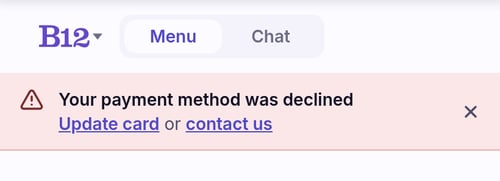
Notices come in two colors:
- Red means something needs your action, such as a declined payment or an unpublished site.
- Yellow means something is in progress, such as a payment that is still being processed.
If you have more than one notice, the red ones appear first.
Note: Clicking the X  on a notice hides it for now. It appears again the next time you open the editor until the issue behind it is resolved.
Billing and payment notices
Your payment method was declined

B12 tried to charge the card on file and the charge didn't go through. This often happens when a card expires or is replaced.
- Click
Update cardin the notice. Your account's billing page opens. - Under Payment method, click
Updateand enter your new card details.
You can also reach this page any time: click the B12 logo  at the top of the sidebar, then choose
 Billing & subscription
Your last payment failed
When a payment is past due, account admins also see a red Your last payment failed notice at the top of the Billing & subscription page. It shows the date of the declined payment, and the Next payment due line shows a Past due label.

Update your payment method on the same page to resolve it. If your website is billed through another business on your account, the notice names that business instead. Click the business name to open it, and update the payment method there.
Your payment is pending

This yellow notice means a payment you started hasn't finished processing yet. Most pending payments clear on their own. If the notice doesn't go away, click Contact us and we'll look into it.
Caution: If a payment problem isn't resolved, B12 may unpublish your website. Update your payment method as soon as you see a billing notice to keep your site live.
Website visibility notices
Both of these notices have the title Your site is unpublished. The line below the title tells you which one you have.
"Visitors can't see it yet."

Your website was unpublished from your account, so visitors can't see it. To bring it back:
- Click
Publish nowin the notice. The Domains
- Click
Republish site. - In the Republish website box, click
Republish.
"Visitors can't see it."

B12 has unpublished your website, so visitors can't see it. You can't republish it yourself. Click Contact us and our team will tell you what's needed to get it live again.
SEO and launch notices
These notices mean our team needs information from you to finish work on your website.
- SEO setup needs your input (We have a few questions.): we need a few details to complete your SEO setup.
- Your launch isn't finished (We need a few details.): your website launch has stalled, and we need a few details to get it fully live.


For either notice, click Contact us and send us a message. The sooner you reply, the sooner we can finish.
Project under review

Our team is reviewing your project. Click Contact us to find out why and what happens next.
Other banners you might see
Some banners in B12 are offers or reminders, not problems. You don't need to do anything about them unless you want to.
- Plan offer: on free accounts, a card in the sidebar and a banner on your dashboard show the current offer for upgrading, with a
View plansorUpgradebutton. The offer shown depends on your account. - Domain reminder: on paid plans without a domain, your dashboard shows "Get a free domain or connect a domain you already own." with a
Set up domainbutton. - Low credits: when you're running low on AI credits, the AI Agent shows how many credits you have left before your limit, with an
Upgrade nowlink.
Tip: Account notices are always red or yellow and sit at the top of the sidebar. If a banner looks different, it's most likely an offer or reminder.
FAQ
→I dismissed a notice. Why did it come back?
⇒Dismissing a notice only hides it until you next open the editor. It keeps coming back until the issue behind it is resolved.
→I updated my card. Why is the payment notice still showing?
⇒The notice clears once your next payment goes through, not as soon as you save the card. If it's still there a day after you update your card, click Contact us and we'll retry the payment.
→Is my website offline when I see a notice?
⇒Only the Your site is unpublished notices mean visitors can't see your website. The other notices don't take your site offline on their own.
→I see more than one notice. Which should I fix first?
⇒Start at the top. Red notices are listed before yellow ones, and billing notices are the most likely to affect your website if left unresolved.