
 Written by: Ronnel DG Last updated: 02 Apr., 2026 |
What happens when you unpublish
When you click Unpublish under  Domains
-
Your website is removed from all connected live domains.
-
Visitors see a 404 error (page not found).
-
The site is no longer publicly accessible.
-
The preview in the website editor will also display a 404 error.
Important: If you fully unpublish your website, you won’t be able to edit or use the site normally again until you republish it.
When to unpublish
Unpublishing may be appropriate if:
- You are permanently shutting down your website
- You don't need to edit or make changes to the website while it is unpublished
If you're updating your site or preparing a redesign and want to manage what visitors see, do not unpublish the entire website. Create a "Coming Soon" or "Under Construction" page instead.
Republishing your website
If your site was unpublished and is now showing a 404 error:
- In the left sidebar menu, go to
- Click
Republish site. - Confirm your selection.
Once republished, the 404 error is removed, and your website is live again, both in the B12 Editor and on any connected domains.
Creating a "Coming Soon" or "Under Construction" page
If you don't want your full website visible yet, replace your homepage instead of unpublishing. This keeps your website active and prevents 404 errors.
- Open the editor and enter a prompt to create a temporary homepage.
Temporarily hide all existing pages on my website. Create a new "Under Construction" home page that matches my brand style. Do not include a navigation bar on this page or any links to other pages.
- Review the generated page.
- Confirm it's set as your homepage.
- Click
Publish.
After publishing a “Coming Soon” or "Under Construction" page, visitors won’t be able to navigate to your other pages.
To continue editing while your coming soon page is published, restore the previous version of your webstie by checking the restore points in the AI Agent chat.
- In the AI Agent chat, find the message linked to the the version from before you created the temporary page.
- Select the restore option for that update.
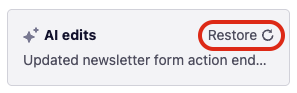
Your site will revert to that earlier version. All other changes since then will be undone.
If you prefer not to restore a previous version, enter a prompt to the AI Agent to remove the temporary homepage and re-enable your original navigation.
Restore all of my previously hidden pages and replace the "Under Construction" page with my original index page. Do not make any additional changes.
You can continue editing your website while your "Coming soon" page is published. Don't publish your site again until you are ready for the full site to go live.