
|
|
|
This feature requires at least one Client Engagement seat. View plans and pricing here. |

Domains can only have one email service running at a time. If you already have a custom email address for your domain through your email provider (like Google's G Suite or Microsoft Outlook), you can follow these steps to create a new custom email address that can be used with B12's email marketing tool without disabling your current email service.
If you do not have have another email service for your domain, follow these instructions to create your custom email address, instead.
Creating and verifying a subdomain for email marketing
Domains can only have one email service active at a time. Using a subdomain allows B12 Email Marketing to work alongside your existing provider.
1. In the left sidebar menu, go to  Domains
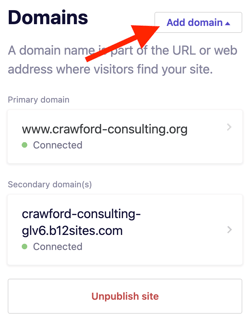
2. Click Add domain.
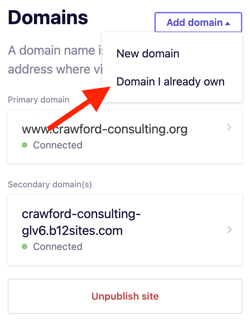
3. Click Domain I already own.
4. Enter your desired subdomain for your email address under URL.
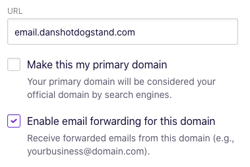
5. Select Enable email forwarding for this domain.
6. Then click Continue twice.
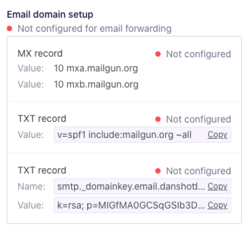
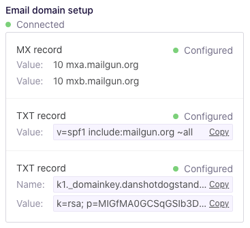
7. On the Review tab, follow the instructions under Email domain setup to add the four required DNS records with your domain registrar.
-
-
The host name for the MX records and the first TXT record is the subdomain name, such as
email. -
The second TXT record uses the provided value along with your subdomain name.
-
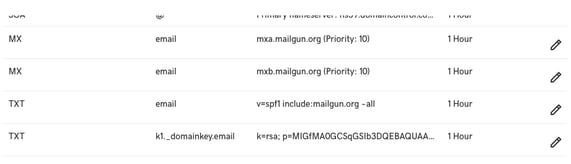
If you’d like some help completing these steps, don’t hesitate to contact our customer success team.
8. After adding the DNS records, click Complete in the domain setup.
DNS changes can take up to 48 hours to apply. Once complete, the Email domain setup card shows Connected with a green indicator.
Creating a custom email address on the subdomain
After your subdomain is connected, you can create a custom email address to use for email marketing.
1. In the left sidebar menu, go to
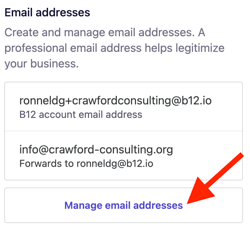
2. Scroll to Email addresses then click Manage email addresses.
3. Under Custom email addresses, click Add email address.
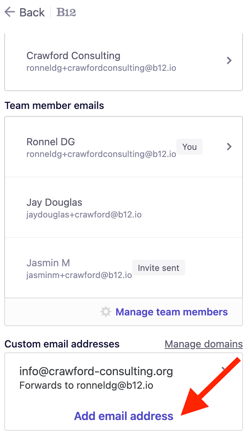
4. Under Email address, enter the local part of the email address, which is the text before the @ symbol.
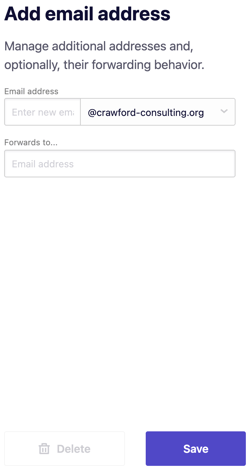
5. In the Forwards to... field, enter your existing email address.
6. Click Save.
You can now use this custom email address to send messages through B12 Email Marketing. See this article for instructions for composing a new email.