
|
Written by: Ronnel DG |

What a skill is
A skill is a set of instructions you save for the AI Agent, so it handles a recurring task the same way every time without you explaining it again. You can install skills B12 has already written, or describe a task and have the agent write the skill itself.
Without a skill, chat requests might be open to the agent's interpretation, or they might be implemented slightly differently from what you intend. For example, if you check your site for accessibility problems each month, you might describe what to look for and how to report it each time, and the results may vary depending on how you phrased it.
A skill saves those instructions once. From then on, the agent follows the same process whenever the task comes up, so the results stay consistent.
Skills are saved with the website you added them to. If you have more than one B12 website, each one keeps its own set of skills.
Note: Skills are included on every plan. Running one counts as a normal AI Agent request, so it uses AI credits based on how much work it involves.
Finding your skills
Your skills live in the  Agent
Agent
- Click
Menuat the top of the B12 Editor. - Select
- Click
 Skills
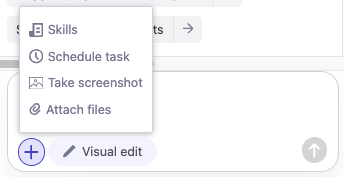
You can also reach the same place from the chat. Click the plus icon  in the chatbox and choose
 Skills.
If you haven't added anything yet, the panel reads No skills installed with a single Add skill button.
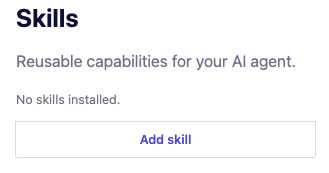
Adding a pre-built skill
B12 maintains a small catalog of skills for common website tasks. These are the fastest way to start, because the instructions are already written and tested.
- In the Skills panel, click
Add skill. - Browse the list, or type in the search field to filter by name.
- Click the skill you want. It's added right away and appears in your Skills list.
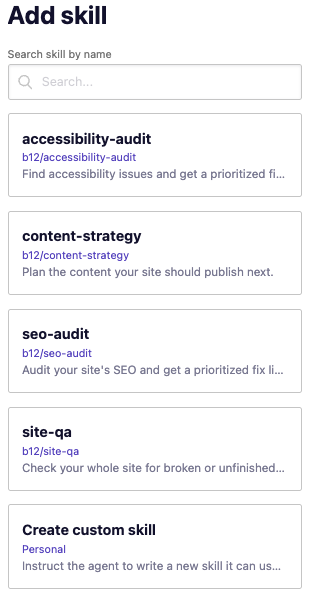
Once the skill has been added, you'll be able to use it in a future request.
Four skills are available:
| Skill | What it does |
|---|---|
| accessibility-audit | Finds accessibility issues and gives you a prioritized fix list |
| content-strategy | Plans the content your site should publish next |
| seo-audit | Audits your site's SEO and gives you a prioritized fix list |
| site-qa | Checks your whole site for broken or unfinished pages and links |
Creating a custom skill
When the catalog doesn't cover what you need, describe the task, and the agent will write the skill for you.
- Click
Add skill, then chooseCreate custom skill. - You'll return to the chat with Create a custom skill for already in the input. Finish the sentence and send it.
- Answer the agent's follow-up questions. It usually asks what the skill should focus on, so it can write something specific rather than generic.
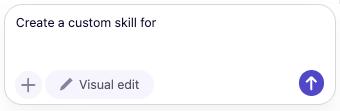
When the agent finishes, it confirms what it built, and the new skill appears in your Skills list with the rest.
Tip: Tell the agent what a good result looks like, not just what to check. A skill that ends with "report findings grouped by severity and wait for my approval" is far more useful than one that only says "review my site."
The more clearly you describe it, the better the result. It helps to include:
- The task you want to repeat, and when it applies
- What the skill should check, produce, or change
- What a good result looks like, and how you want it reported
- Anything the skill should leave alone
Running a skill
There are three ways to put a skill to work: ask for what you want in ordinary language, start from the skill itself, or set it to run on a schedule.
Asking in your own words
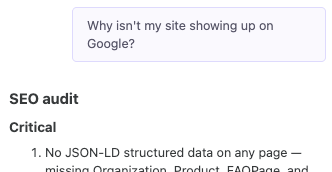
You don't have to name a skill for the agent to use it. The agent recognizes when an installed skill fits what you're asking and applies it, so you can describe the outcome you want and let it work out the rest.
Each of these requests picks up a skill without naming it. For example:
| Example request | Skill it uses |
|---|---|
| Can people using a screen reader get around my site? | accessibility-audit |
| Why isn't my site showing up on Google? | seo-audit |
| Check my site for broken links before I publish. | site-qa |
| What should I write about on my blog next? | content-strategy |
The Agent will indicate which skill it used when it sends its response.
Using the run icon
When you already know which skill you want, start from the Skills panel instead. Click the run icon next to the skill.
This opens the chat with the prompt already started for you:
Use the [skill name] skill to
Finish the sentence with what you want done, then send it. This is the quickest way to be certain a particular skill is the one being used.
Note: Some skills don't need any extra direction. If a skill already knows what to do, you can send the prompt as it is without adding more detail.
Running a skill on a schedule
Skills work well as recurring checks. A monthly SEO audit or a site check before each publish catches problems without you remembering to look.
- In the chat, click the plus icon and choose
 Schedule task
 - Set
Repeatto run once or on a recurring basis, then pick the date and time. - Write the prompt as you normally would, naming the skill so the right one runs.
- Send it. The task appears under
 Agent
Agent
Here's an example prompt you can try:
Use the site QA skill to review my website and report what you find. Don't change anything until I've read the results.
A scheduled run uses AI credits when it runs, not when you set it up, and it saves a version of your site, like any other agent request. For more on timing and managing saved tasks, see Scheduling tasks for the AI Agent.
Viewing and editing a skill
You can read exactly what any skill tells the agent to do, including the ones B12 wrote. Click the code icon  next to the skill to open its instructions in the Code editor.
Skills are saved as Markdown files (files ending in .md). Markdown is a simple text format for lightly formatted documents. There's no programming involved, which is why the instructions read as plain language you can follow, even though they open in the Code Editor.
The instructions tell you what a skill checks and what it deliberately leaves alone, so they're worth reading even if you never change them.
To change a skill, edit the instructions directly, then click Save in the upper right corner. You can also ask the agent to do it for you:
Update my [skill name] skill so it also checks [what you want to add].
Your changes apply the next time the skill runs. This works the same way for catalog skills and ones the agent wrote for you.
Removing a skill
If you no longer need a skill, click the remove icon  next to it in the Skills panel. The agent stops using it right away.
Caution: Removing a custom skill discards the instructions the agent wrote for it. You can re-add catalog skills at any time, but a custom skill has to be created again.
Removing a skill doesn't undo any work it already did. Changes it made to your site stay in place, and you can restore a previous version if you want them reversed.
Frequently asked questions
→Does running a skill use AI credits?
⇒Yes. A skill runs as a normal AI Agent request, so it uses credits based on how much work it involves.
→Do I have to name the skill in my prompt?
⇒No. The agent picks up a relevant skill based on what you ask. Naming it is useful when several of your skills could apply and you want a specific one.
→Do my skills carry over to my other websites?
⇒No. Skills are saved with the website you added them to. If you manage more than one B12 website, add the skill to each one separately.
→Can I change a skill after I add it?
⇒Yes. Open its instructions with the code icon and edit them directly, or ask the agent to update the skill for you. This works for catalog skills and custom ones.
→How is a skill different from a scheduled task?
⇒A skill defines how the agent handles a task. A scheduled task sets when the agent runs a prompt. They work together: a scheduled prompt can use any skill you've installed.