
|
Written by: Jay Douglas Last updated: 15 Oct., 2026 |

Image carousels let you display multiple images in a single interactive space, useful for portfolios, service galleries, client testimonials, and product showcases. In B12, the AI Agent builds carousels based on a description of what you need. Once added, you can update images, adjust autoplay, and change the navigation style at any time.
What you can build
The AI Agent can create several types of carousels depending on your goals:
- Image slideshow — A slider that cycles through photos with navigation arrows and optional dot indicators. Good for hero sections, service galleries, and photo collections.
- Portfolio or gallery carousel — Displays multiple images with optional labels or captions. Common for photographers, designers, and creative professionals.
- Testimonial slider — Cycles through customer quotes, names, and optional headshots. Useful for service businesses and coaches.
- Product showcase — Highlights products or services with images, names, and short descriptions.
Tip: Not sure which type fits your needs? Describe your goal to the AI Agent in plain language. For example, "I want to show off photos of my work," — and it will recommend an approach.
Adding a carousel with the AI Agent
Describe the carousel you want in the chatbox. Be specific about the page name, the type of carousel, and the content to include. The prompts below are ready to copy and edit:
Image slideshow

Add an image slideshow to my [page name] page with [number] slides featuring [describe the images, e.g. photos of our team at work]. Include navigation arrows and dot indicators.
Portfolio or gallery carousel

Add a portfolio carousel to my [page name] page with [number] images. Add a short caption below each image and style it to feel clean and minimal.
Testimonial slider
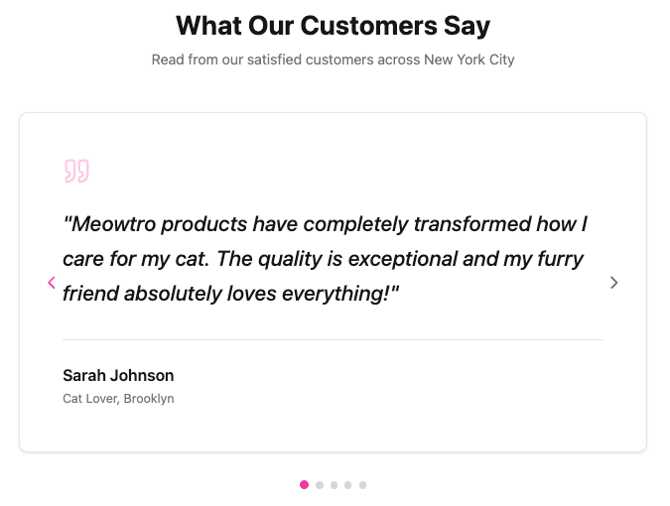
Add a testimonial slider to my [page name] page with [number] testimonials. Each slide should show a quote, the client's name, and their job title or company. Match the style to my existing site colors.
Product showcase carousel
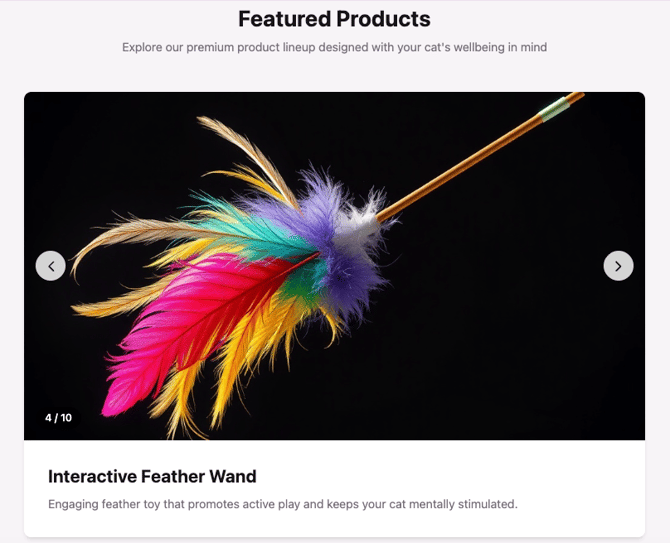
Add a product showcase carousel to my [page name] page with [number] items. Each slide should include an image, the product name, and a one-sentence description.
After submitting your prompt, the AI Agent will build the carousel and show it in the site preview. Review the result and follow up with additional prompts to refine it. For example, "Make the carousel taller" or "Switch to a dark background."
Tip: Describe visual outcomes rather than technical details. "Make the carousel feel spacious with lots of white space" will produce better results than "increase the padding to 40px."
Customizing your carousel
Once the carousel is on the page, you can update it through the AI Agent or, for certain elements, directly in Visual edit.
Changing images
How you swap carousel images depends on how the AI Agent built the carousel.
If the carousel uses plain HTML images: click  Visual Edit
If the carousel was built as a React component (the most common setup for animated carousels): the left sidebar image controls won't appear when you click carousel images in Visual Edit. Use the AI Agent to swap images instead:
Replace the images in the carousel on my [page name] page with [describe the new images, e.g. updated photos of our studio].
Note: Not sure which type your carousel is? Click a carousel image in
Adjusting autoplay and timing
To enable autoplay or change how long each slide is displayed, prompt the AI Agent:
Enable autoplay on the carousel on my [page name] page. Change slides every [number] seconds.
To turn autoplay off:
Disable autoplay on the carousel on my [page name] page so visitors advance slides manually.
Changing navigation style
You can change whether the carousel shows arrows, dot indicators, both, or neither:
Update the carousel on my [page name] page to use [arrows only / dots only / both arrows and dots / no navigation controls].
Tip: If your site gets significant mobile traffic, add "and make sure swipe gestures work on mobile" to your prompt to enable touch-based navigation.
Frequently asked questions
→Why can't I replace carousel images using the left sidebar?
⇒If your carousel was built as a React component, B12's Visual Edit panel doesn't detect the images inside it. Use the AI Agent to swap images instead. Describe the new images in a prompt, and the Agent will update the carousel code directly.
→Can I add a carousel to any page on my site?
⇒Yes. Specify the page name in your prompt and the AI Agent will add it there. You can add carousels to multiple pages if needed.
→How many images can a carousel hold?
⇒There's no fixed limit, but 3–8 images tend to work best. If you need to display a large collection, ask the AI Agent to build a grid gallery instead.
→Can I make my carousel autoplay?
⇒Yes. Prompt the AI Agent to enable autoplay and specify how long each slide should display. For example, "Change slides every 5 seconds." You can disable it the same way.