
|
Written by: Ronnel DG |

In B12, new pages and new sections are added through the AI Agent; there's no separate page builder or section library to browse. What you get back depends almost entirely on what you ask for. The prompts in this article are starting points you can copy, adapt, and build on.
Adding a new page
When you ask the AI Agent to add a page, it creates the page with content it infers from your prompt and your existing site, then adds it to your navigation automatically. The more context you give, the closer the first draft will be to what you have in mind.
A good page prompt includes four things: the page name, what it's for, who it's for, and what should be on it. You don't need to describe every section. Giving the Agent a clear purpose is usually enough to get a useful first draft.
Add a [page name] page to my site. It's for [describe the purpose — e.g. showcasing my services to potential clients]. Include [list 2–3 things you want on the page — e.g. a short intro, a list of services with descriptions, and a call to action].
Create a new [page name] page. This page should explain [what visitors will learn or do here]. Keep the tone [e.g. professional, friendly, concise] and match the style of my existing site.
Tip: If you want the new page to feel consistent with your existing content, tell the Agent to match the style or tone of a specific page. For example: "Match the tone and layout style of my About page."
If you want to control where the new page appears in your navigation, include that in your prompt:
Add a [page name] page and place it after [existing page name] in the navigation.
Note: The AI Agent always adds a new page to your navigation. If you want to create a page without it appearing in the nav, ask the Agent to hide it: "Add a [page name] page but don't add it to the navigation."
Adding a new section to a page
A section is a distinct content block on a page; a testimonials block, a pricing table, a team bio row, a call-to-action banner. The AI Agent can add a new section to any existing page or place it on a new page you're creating at the same time.
The most important things to include in a section prompt are: which page the section belongs on, what the section should contain, and where it should appear relative to other sections on the page.
On the [page name] page, add a [describe the section — e.g. testimonials section with three client quotes] below the [existing section name or position — e.g. hero section].
Add a [section type — e.g. pricing table, FAQ section, team bios section] to the [page name] page. Place it above the contact form at the bottom.
On my [page name] page, add a short section after the intro that highlights [two or three key points — e.g. my three most popular services]. Keep it concise and visual.
Tip: If you have placeholder content in mind like real testimonial quotes, actual pricing tiers, your team's names, include them in the prompt. The Agent will use what you provide and fill in the rest. You can always edit the details with another prompt after reviewing the result.
Tips for getting better results
A few habits make a noticeable difference when you're expanding your site's structure.
Name the page explicitly. Rather than saying "add a new section," say "on the Services page." The Agent reads your whole site, but naming the page removes any ambiguity about where the change should land.
Describe the content, not just the type. "Add a testimonials section" works, but "Add a testimonials section with three short quotes from clients about my consulting work" gives the Agent something real to write from. Specific prompts produce first drafts that need less editing.
Tell the Agent what to leave alone. If you want the section to appear in a specific spot but don't want anything around it to change, say so: "Don't touch the rest of the page." This is especially important for pages where you've already made precise edits.
Review before adding more. Each time the Agent finishes a task, take a moment to check the result in the preview before prompting again. If you queue multiple additions without reviewing, you may end up with several sections that need fixing, and each fix is another task.
Note: Every page or section the AI Agent adds creates a new version of your site. If the result isn't what you expected, you can restore to the version before the change from the  AI edits card in the chat. See Restoring a previous version of your website.
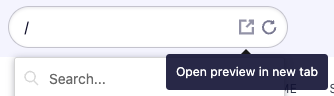
Tip: Once your new page is added, you can jump straight to it using the Page Switcher toolbar above the website preview. Search for the page by name or select it from the list to view and review it.
Frequently asked questions
→Can I add multiple sections to a page in one prompt?
⇒Yes. You can describe several sections in a single prompt, and the Agent will add them all. If order matters, describe the sections in the order you want them to appear. For large additions, it may be faster to add one section at a time so you can review each before continuing.
→How do I add a section before or after a specific existing section?
⇒Name the neighboring section in your prompt. For example: "Add a testimonials section directly above the contact form on the Services page." If you're not sure what a section is called, describe it by its content: "below the section with the large heading and photo."
→What if the new page or section doesn't match my site's style?
⇒Add a style constraint to your prompt: "Match the typography and color scheme of my existing pages." If the result still doesn't match, you can ask the Agent to revise it. For example: "Update the new section to use the same card style as the rest of the Services page." If the mismatch is significant, restore the previous version and re-prompt with more specific style guidance.