
|
Written by: Ronnel DG Last updated: 28 Oct., 2026 |

A video can show your work, welcome visitors, or explain a service faster than text. You can add a video to any page in two ways: link to a video on YouTube or Vimeo, or upload a video file from your computer. Either way, the AI Agent builds the video player for you.
Which way should you choose?
- YouTube or Vimeo: best for longer or larger videos, and for videos you already share on those sites.
- Upload a file: best for short clips you don't want on YouTube or Vimeo, such as a product demo or a quick welcome message.
Adding a YouTube or Vimeo video
The fastest option, and it works for videos of any length.
- Open your video on YouTube or Vimeo and copy its link. You can copy it from your browser's address bar, or click Share under the video and then Copy.
- In the B12 Editor, open
Chat. - Copy the prompt below into the chat. Replace the parts in brackets with your page, where the video should go, your heading, and your video link.
Add this video to my [page name] page, in a section [below the hero / above the contact form]. Use the heading "[your heading]". Video link: [paste your YouTube or Vimeo link]. Add referrerpolicy="strict-origin-when-cross-origin" to the video so it plays.
- Send the prompt. The AI Agent adds the video section to your page and shows an AI edits card in the chat when it's done.
- Check the video in the preview and press play to make sure it works.
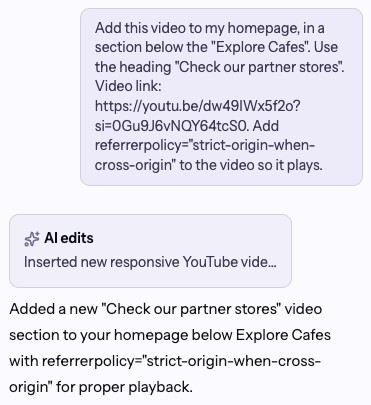
Tip: Always name the page and the spot, and give your own heading. If you leave them out, the AI Agent picks a place and writes its own heading and description for the video section. It may also create a page if the one you name doesn't exist yet.
Keep the last sentence of the prompt for YouTube videos. Without it, YouTube may refuse to play the video on your site. It does no harm on Vimeo videos.
Uploading your own video file
Best for short clips. B12 stores the file for you, so nothing needs to be posted anywhere else.
Note: Each file can be up to 75 MB. Common formats like MP4, MOV, and WebM all work. If your video is larger, you’ll see “File upload limit is 75MB.” Shorten it, lower its quality, or put it on YouTube and use the steps above.
- In the B12 Editor, open
Chat. - Click
 in the chat input, then click
  Attach files
 - Wait until the file finishes uploading. Its name appears in the chat input when it's ready.
- Copy the prompt below into the chat and replace the parts in brackets.
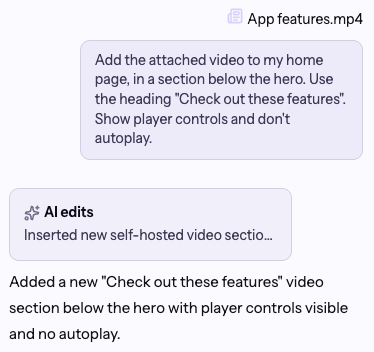
Add the attached video to my [page name] page, [below the first paragraph / in a section below the hero]. Use the heading "[your heading]". Show player controls and don't autoplay.
- Send the prompt, then check the video in the preview.
Changing, moving, or removing a video
Once a video is on your page, you can swap it, move it, or take it out with a short prompt. You can also edit the heading and text around it in  Visual edit
Here are a few prompts to start from:
Replace the video on my homepage with this one: https://www.youtube.com/watch?v=...
Move the video section on my About page above the team section.
Remove the video section from my Services page.
Note: In Visual edit, clicking a YouTube or Vimeo video plays it instead of selecting it. To change the video itself, ask the AI Agent. To change the heading or description, click that text in Visual edit.
When you're happy with the video, click Publish so visitors can see it on your live site. If a change doesn't turn out the way you wanted, you can restore a previous version of your website.
Frequently asked questions
→Why does my YouTube video show "Video player configuration error" or "Error 153"?
⇒YouTube needs to know which website the video is playing on, and your site doesn't share that by default. Send the AI Agent this prompt to fix it: The YouTube video on my [page name] page shows Error 153. Add referrerpolicy="strict-origin-when-cross-origin" to the video. Then press play in the preview to check.
→Can my video play automatically or loop?
⇒Yes. Ask the AI Agent, for example: "Make the video on my homepage play automatically, muted, and on a loop." Most web browsers only autoplay videos that are muted, so include "muted" or the video may not start on its own.
→Which video files can I upload?
⇒MP4 or WebM works best. MOV and AVI files are converted to MP4 automatically. Other formats may upload but not play in every browser, so convert them to MP4 first. Each file can be up to 75 MB. See Uploading website files and resources for every file type the AI Agent accepts.