
|
Written by: Ronnel DG Last updated: 24 Oct., 2026 |

Connectors link the AI Agent to other apps you use, such as Google Drive, Notion, and Figma. Once an app is connected, you can ask the Agent to read from it or work in it the same way you ask it to edit your website. This article shows you how to connect an app, what to ask once it's connected, and how to manage or remove a connection.
 What connectors do
A connector gives the AI Agent permission to use one of your other accounts on your behalf. You sign in to the app once, and from then on the Agent can use it whenever a request calls for it. For example, you can ask it to turn a Notion page into a blog post, or to put a list of your page titles into a Google Doc.
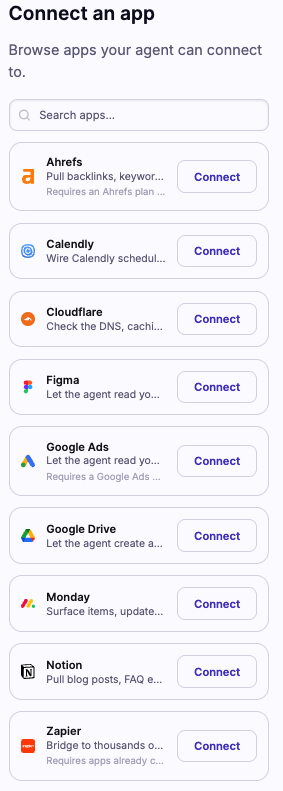
You can connect these apps:
| App | What the AI Agent can do with it |
|---|---|
| Ahrefs | Pull backlink, keyword, rank-tracking, and site-audit data for SEO research. Needs an Ahrefs plan with API access (Lite or above). |
| Calendly | Add Calendly scheduling to your website and manage your availability and event types. |
| Cloudflare | Check the DNS, caching, and firewall settings behind your custom domain. |
| Figma | Read your Figma files and turn designs into pages on your website. |
| Google Ads | Read your Google Ads campaigns, spend, and keyword performance. Needs a Google Ads account. |
| Google Drive | Create and edit Google Drive files for you, such as Google Docs and Sheets. |
| monday.com | Show items, updates, and board status from your monday.com boards. |
| Notion | Pull blog posts, FAQ entries, and About page content from your Notion workspace. |
| Zapier | Reach the thousands of other tools in your Zapier workspace. Only works with apps you have already connected in your Zapier account. |
Connecting an app
You can open the list of connectors from the left menu or straight from the chat. Both take you to the same place.
- In the B12 Editor, open the
Menutab. - Select
 Agent
AgentConnectors. - Click
Add connector. - Find the app in the Connect an app list. You can type its name in the search box to find it faster.
- Click
Connectnext to the app. - In the window that opens, sign in to the app and allow the permissions it asks for.
When you finish, the app appears in your Connectors panel with your account name and a green Connected status.
The sign-in opens in a pop-up window. If nothing opens, you’ll see the message “Allow pop-ups for this site, then try connecting again.” To fix it, allow pop-ups for b12.io in your browser settings, then click Connect again.
Asking the AI Agent to use a connected app
You don't need a special command. Open the Chat tab and describe what you want in plain language, naming the app so the Agent knows where to work. A few examples:
Create a Google Doc in my Google Drive that lists the titles of all the pages on my website.
Turn my Notion page [page name] into a blog post on my website.
Add my Calendly booking page to my [page name] page.
Check my Cloudflare settings and tell me if anything could stop my custom domain from working.
When the Agent creates something in another app, such as a Google Doc, it sends you a link to it in the chat so you can open it right away.
Note: If you've connected more than one account for the same app, such as a work and a personal Google Drive, the Agent asks which account to use before it does anything.
What connectors can't do
A connector can only do what the other app allows. Each app decides what outside tools like B12 may see and change, so some tasks stay out of reach.
- Google Drive only sees files the Agent made. The Agent can create and edit its own files in your Drive, but it can't browse or open files that were already there. To use an existing document, download it and add it to the chat with
 Attach files
 - Ahrefs and Zapier need the right account. Ahrefs needs a plan with API access, and Zapier can only reach apps you’ve already connected inside Zapier.
monday.com and Cloudflare are read-only. The Agent can show you what’s in them, but it can’t change your boards or your DNS settings. - The Agent works only when you ask. Connecting an app doesn't make the Agent change anything there on its own. It acts when a request in the chat calls for it.
Managing your connections
Every app you've connected is listed in Connectors, with the account it uses and its status. From here you can add a second account or remove a connection.

Adding another account
- Open
Connectors. - Under the app, click
Add account. - Sign in with the other account in the window that opens, and allow the permissions.
Disconnecting an app
- Open
Connectors. - Next to the account you want to remove, click
Disconnect. - In the Remove connector window, click
Disconnectto confirm.
Some apps don't let B12 take back the permission for you. For those, the confirmation window tells you so. B12 forgets the connection, and you finish the removal by removing B12 from the app's own account settings.
Frequently asked questions
→Why does my connection say Unfinished attempt?
⇒The sign-in window was closed before the connection finished. Click Remove next to it to clear it, then click Add account or Connect to try again.
→What does Timed out or Failed mean next to a connection?
⇒The app didn’t confirm the sign-in in time, or it returned an error. Click Remove next to it, then click Add account to try again.
→What does Permission declined mean?
⇒One of the permissions was unticked on the app’s sign-in screen, so the app didn’t connect. Click Remove next to it, then click Add account and leave every permission ticked.
→Why does it say the app wasn’t connected and needs an administrator’s approval?
⇒B12 shows this message when sign-in takes more than about 2 minutes. It often happens with work accounts, where an IT administrator has to approve B12 first. Once they approve it, the app shows up in your Connectors panel.
→Can my teammates see my connections?
⇒Yes. Connections belong to the whole website, not to one person, so everyone on your team sees them. Each connection shows the account’s email address. If the app doesn’t share one, it shows the name of the teammate who connected it instead, such as “Ana’s Notion.”
→Can the AI Agent read everything in my Google Drive?
⇒No. It can only see and edit the files it created for you. To work with an existing document, add it to the chat with Attach files.
→Does disconnecting an app delete the files the Agent made there?
⇒No. Disconnecting only stops the Agent from using the app. Anything it already created, like a Google Doc, stays in your account.