
|
Written by: Ronnel DG |

When you sign in to B12, the first thing you see is your dashboard. It's your home base, it shows how far along you are in getting your site ready to launch, lists the remaining setup steps, and gives you a shortcut to every section of your account through the navigation menu on the left. This article walks you through what's on the dashboard and how to make the most of it.
Finding your dashboard
The  Dashboard
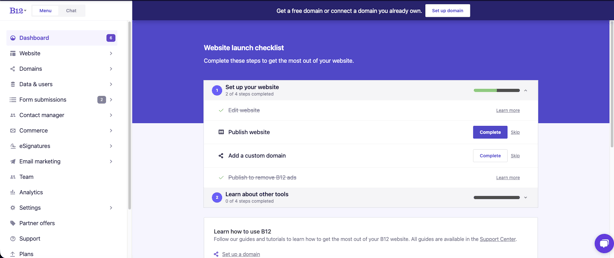
The website launch checklist
The launch checklist is the main feature of the dashboard. It breaks your website setup into sections, each with its own progress bar and a count of how many steps you've completed. You can collapse or expand each section by clicking on it.
Each step has two buttons: Complete and Skip. Some steps mark themselves as complete automatically when you take the corresponding action. For example, editing your website checks off the "Edit website" step without you needing to do anything manually.
Note: The checklist sections and steps may vary depending on your plan and account. The examples below reflect what most users will see.
Steps in the checklist may include:
Setting up your website
This section covers the core steps to get your site live and looking its best:
- Edit website — marks complete once you've made any edit to your site in the editor
- Publish website — marks complete when you publish your site for the first time
- Add a custom domain — marks complete once you've connected a custom domain to your site
- Publish to remove B12 ads — a reminder that upgrading to a paid plan removes the B12 banner from your published site
Learning about other tools
This section introduces the client engagement features that live alongside your website in the B12 Editor. None of these steps auto-complete — click Complete when you've taken a look, or Skip if it doesn't apply to your business.
- Contact manager — Where contacts from your forms and signups are stored
- Email marketing — Send newsletters and campaigns to your contact list
- Contracts & eSignatures — Send and collect signed agreements directly through your site
- Inviting team members — Bring collaborators or clients into your B12 account
Dashboard cards
Depending on your plan, your dashboard may also display summary cards alongside the checklist. Common cards include:
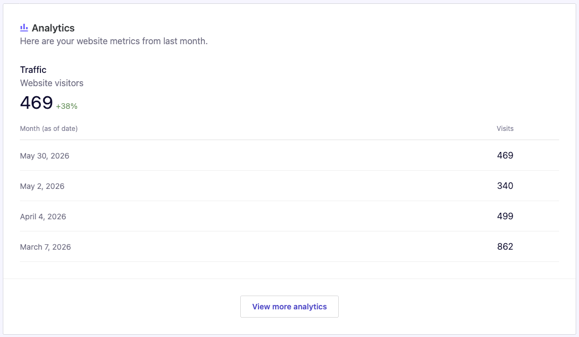
- Analytics overview — Shows a snapshot of your website traffic, including total visitors and a month-over-month comparison. Click
View more analyticsto see your full report.
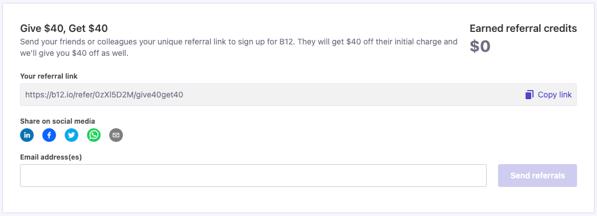
- Referral — Displays your unique referral link for the B12 referral program. Share it with friends or colleagues. They get $40 off their first charge, and you earn $40 in referral credits. The card also shows your total earned referral credits.
Navigating your account
Everything in your B12 account is accessible from the left sidebar, which is always visible regardless of which screen you're on. Here's a quick reference to what each section contains:
| Section | What you'll find there |
|---|---|
| Dashboard | Launch checklist and referral program |
| Website | Your website editor; Visual Edit and AI Agent |
| Domains | Connect and manage custom domains |
| Form submissions | View messages submitted through your contact forms |
| Contact manager | CRM-style list of your contacts (paid plans) |
| Commerce | Invoices, payments, payouts, bank accounts, and templates |
| Agent | Scheduled tasks (Schedule), Skills, and Connectors for the AI Agent |
| eSignatures | Send contracts for digital signing (paid plans) |
| Email marketing | Create and send email campaigns (paid plans) |
| Analytics | Site traffic and visitor data (available after publishing) |
| Settings | SEO settings, business info, hours, and integrations |
| Plans | View and manage your B12 subscription |
| Partner offers | Browse B12's marketplace to hire a website expert |
| Support | Get help from the B12 support team |
Note: Contact manager, eSignatures, and Email marketing require a paid plan that includes a Client Engagement seat. If you're on a Client Engagement plan and still don't see these items, your team role may not include Client Engagement access. Ask your account owner to update your permissions.
The B12 logo menu
The B12 logo  in the upper-left corner opens a quick-access dropdown with account-level shortcuts:
- Credits — shows your current AI credit balance, your daily counter, and your monthly counter. See AI credits for details on how credits work.
- Upgrade plan — opens plan options and lets you purchase additional credits
- Dashboard — returns you to the B12 dashboard from anywhere in the editor
- Profile — manage your business name, description, and contact details.
- Billing & subscription — view and manage your plan, payment method, and receipts. See B12 website subscription plans and pricing.
- Change password — update your account password
- Invite team member — add team members to your account
- Websites — lists all your B12 sites. Click
Switchnext to a site to switch to it, or select+ Create new websiteto start a new one. See Creating multiple websites with B12. - Log out — sign out of your B12 account
- Settings — access account-level settings
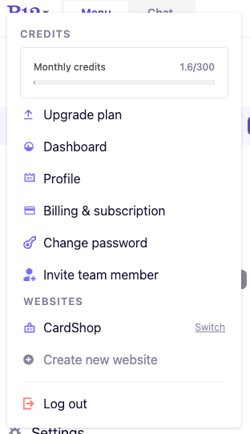
Tip: The Credits section in this menu is the fastest way to check how many AI credits you have left without leaving your current screen. For a full breakdown of how credits work, see AI credits.
Frequently asked questions
→ Can I hide or dismiss the launch checklist once I'm done with it?
⇒ The checklist collapses automatically once all steps are marked complete or skipped, and the badge on the Dashboard nav item disappears. You can always return to the Dashboard to review your completed steps.
→ What happens if I skip a checklist step?
⇒ Skipping a step marks it as done for checklist purposes without requiring you to complete the underlying action. You can still complete skipped steps later — the Dashboard will show which steps are skipped vs. completed. Skipping a step doesn't lock any features.
→ Some sidebar items aren't accessible for me. Why?
⇒ Contact manager, eSignatures, and Email marketing require a paid plan to access. If you're on a paid plan and still don't see these items, you may have been added to the account as a team member without Client engagement access enabled. Ask your account owner to check your permissions under Team settings.
→ I manage multiple B12 websites. How do I switch between them?
⇒ Click the B12 logo in the upper-left corner to open the account menu. Under the Websites section, you'll see your current site and a link to switch to other sites you manage. You can also create a new website from this menu.
→ Where do I go to change my account settings, like my email or password?
⇒ Click the B12 logo in the upper-left corner to access your profile settings, password, and billing.