
|
Written by: Ronnel DG |

Every time you or the AI Agent makes a change to your site, B12 automatically saves the current state as a version. To undo any changes, you can restore your site to any earlier version directly from the chat.
How versions work
A new version is saved automatically after the following edits: AI Agent tasks, Visual edit saves, Code edit saves. You don't need to do anything to create one. Over time, your chat history fills up with AI edits or Code edits cards, each one represents a saved version of your site.
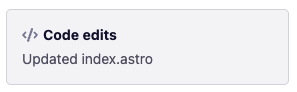
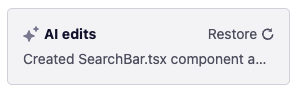
Each card includes a short description of what changed, so you can quickly identify which version to restore to. The most recent card doesn't show a  Restore
Note: Changes you make using Visual edit or the code editor are labelled as Code edits.
Restoring a previous version
To go back to an earlier state of your site, follow these steps:
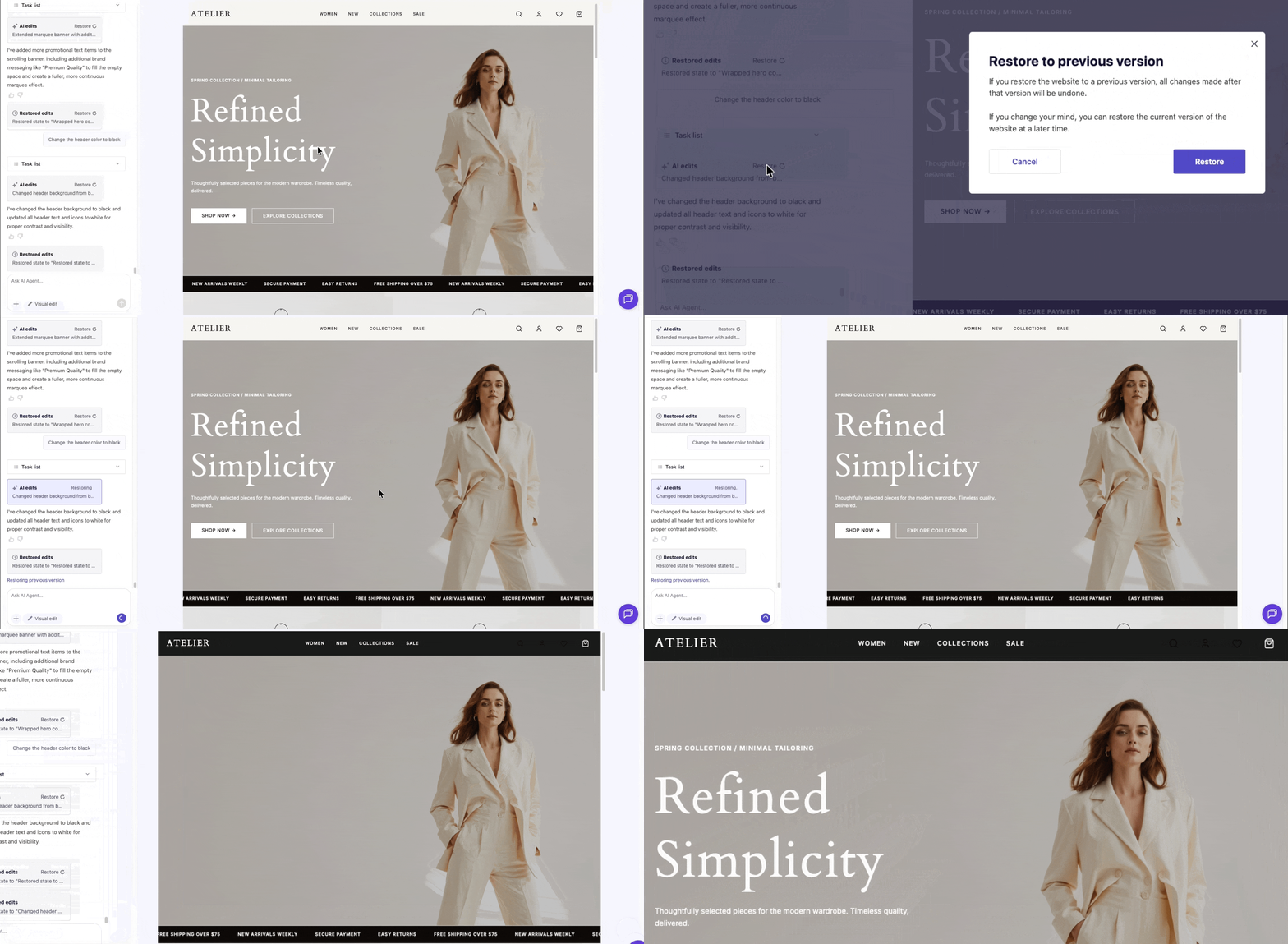
- In the chatbox, scroll up to find the AI edits or Code edits card for the version you want to restore to. Use the description in each card to identify the right one.
- Click
- In the confirmation dialog, click
Restoreto confirm.
Your site reverts to that version. All changes made after that point are undone in the preview.
Caution: Restoring a version updates your draft site, not your published site. Your live site stays the same until you click Publish.
Returning to a more recent version
Restoring is non-destructive. After you restore an older version, the newer versions are still in your chat, you can restore any of them at any time.
For example: if you restore a version from two weeks ago, then decide it wasn't the right one, you can scroll forward in your chat and restore a more recent version instead. The AI edits cards and their descriptions stay visible throughout your chat history.
Tip: Use the descriptions in each AI edits card to orient yourself before restoring. If you're not sure which version is right, try restoring one — you can always switch to a different version afterward.
Re-adding changes after restoring
After restoring a version, your site reflects exactly what it looked like at that point. If there were changes from a later version that you want to keep, you can ask the AI Agent to re-apply them.
Add back the [description of the change] that I had before. For example: [briefly describe what it looked like].
The more specific you are, the more accurately the AI Agent can reproduce the change. If you remember the exact wording, layout, or colors from the version you want to pull forward, include those details in your prompt.
Note: Re-applying removed changes may not reproduce them exactly. Review the result and refine your prompt if needed.
Frequently asked questions
→Can I lose a version permanently?
⇒No. B12 keeps all your versions. Restoring one version doesn't delete any others. You can always scroll through your AI edits cards and restore a different one.
→Can I manually save a version before making a change?
⇒Versions are created automatically after every AI Agent edit, so there's no manual save option. If you want a version saved before a big change, make a small AI Agent edit first (like asking it to add a period and remove it) to create a version at that point. Then proceed with your larger change.
→Does restoring affect my published site?
⇒No. Restoring updates your draft site only. Your published site stays the same until you click Publish. This means you can restore and review the result before deciding whether to publish.
→What's the difference between restoring and undoing?
⇒B12 doesn't have a traditional undo button. Restoring a version is the best way to undo a change. It rolls your entire site back to a specific saved state. Unlike a standard undo, you can restore to any version in your history, not just the most recent change.