
|
Written by: Ronnel DG |

Scheduled tasks let you tell the AI Agent to do something later, automatically. Instead of starting every request yourself, you schedule it once and the Agent runs it at the time you choose: a single future date, or a repeating daily, weekly, or monthly schedule.
How scheduled tasks work
A scheduled task is an AI Agent action that gets completed at a future time. You describe the action you want in plain language and set the specific time or recurring schedule when the agent should carry it out.
When your chosen time arrives, the agent runs the task on its own, even if you're away from your computer. The results appear in your chat history like any other AI Agent edit, so you can review it whenever you come back.
You can schedule a task to run once at a future date and time or on a recurring schedule that repeats daily, weekly, or monthly.
Creating a scheduled task
You can create a scheduled task from two places: the plus menu  in the AI Agent chat, or the
  Scheduled tasks

1. Open the plus icon menu in the AI Agent and select  Schedule task
2. Under Repeat, select the drop-down item to choose when your task should run.
Select Run once for a single future date and time. Then choose the date and time.
Select Daily, Weekly, or Monthly to schedule a recurring task. Then select the day and/or time as needed.
3. In the chat box, describe the task you want the Agent to complete. Be as specific as possible.
4. Click the clock icon  to save the task.
Tip: Be specific in the task description. A clear, detailed request produces a better result.
Managing your scheduled tasks
Open
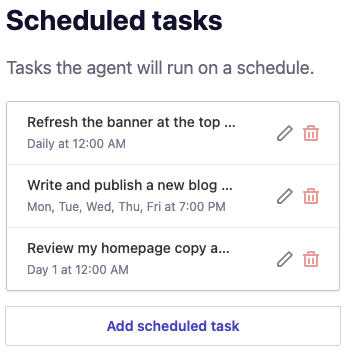
To change a task, select the pencil icon  next to it. You can update the description or the schedule. To remove a task, select the trash icon
  .
.
Caution: Deleting a scheduled task can't be undone, and the task won't run again. If you only want to pause a task temporarily, edit its schedule instead of deleting it.
When your tasks run
A scheduled task runs within a few minutes of the time you set. Two things can delay or prevent it:
- You're actively working in the editor. The Agent waits until you're finished so a scheduled task doesn't interrupt your work.
- You're out of credits. The Agent needs available AI credits to run a task. If your balance is empty when a task is due, it won't run.
If you're in the editor but idle when a task is due, a message appears in your chat history with a clock icon to show that the task was scheduled.
Note: Scheduled tasks use AI credits the same way your normal requests do. If you rely on recurring tasks, keep an eye on your credit balance so a task isn't skipped. Learn more about AI credits.
Examples of tasks to schedule
Scheduled tasks work best for work you'd otherwise have to remember to do yourself. A few examples:
- Publish a fresh blog post on a topic each week.
- Refresh your homepage headline or featured content at the start of every month.
- Update a seasonal promotion banner on a specific future date.
- Add a recurring update to a news or announcements page.
When you set up the task, write the description the same way you'd prompt the Agent in chat. For example:
Write a new blog post about [topic or theme]. Keep the tone consistent with my existing posts and add it to my [Blog] page.
Frequently asked questions
→ Do scheduled tasks run if I'm away from my computer?
⇒ Yes. Once a task is scheduled, the AI Agent runs it at the set time without you present. That's the main reason to use scheduled tasks.
→ What happens if I'm out of credits when a task is due?
⇒ The task won't run, because the Agent needs available AI credits to complete it.
→ Can I change a task after I create it?
⇒ Yes. Open Scheduled tasks, select the pencil icon  next to the task, and update its description or schedule.
→ How do I know a scheduled task ran?
⇒ The results appear in your chat history like any other AI Agent edit. If you're idle in the editor when a task runs, you'll also see a message with a clock icon.