
|
Written by: Ronnel DG |

Metadata is information about a page that visitors don't see on the page itself. Search engines and social networks read it to decide how your page appears in a Google result or in a shared link. Good metadata helps the right people find your website and makes them more likely to click. The AI Agent writes the most important parts for you when it builds a page, and you can ask it to change or add the rest.
Types of metadata
Each page on your website carries its own metadata. These are the types that matter most for search and sharing:
- Page title: the main idea of the page. This directly controls the text on the browser tab and can also appear as the headline in search results.
- Page description: a short summary of the page's content or goal. It can often display below the title in search results.
- Favicon: the small image or icon that appears in the browser tab and saved bookmark/favorite.
- Open Graph tags: the title, description, and image that appear when someone shares your link on social media or in a messaging app. Often called OG title, OG description, and OG image.
- Canonical tag: a line that tells search engines which web address is the main version of a page. This stops the same page from competing with itself in search results.
- Schema markup: structured data that conforms to standard information types, such as your business name, logo, hours, phone number, service area, and more, written in a format search engines understand. It can help search engines and AI understand important details about your offerings.
What the AI Agent sets up for you
You don't have to start from scratch. When the AI Agent creates a page, it typically writes a page title and a page description for it, based on what the page is about. Every page also gets a canonical tag when your site is published, so you never need to add one. The canonical tag points to the page on your primary domain.
Open Graph tags and schema markup are not added unless you ask for them. The sections below give you requests you can send for both.
Checking a page's metadata
To see what a page has, ask the AI Agent. Open the chat and send a request like this, replacing the bracketed text with your own:
What metadata does my [page name] page have? List the meta title, meta description, Open Graph tags, and any schema markup.
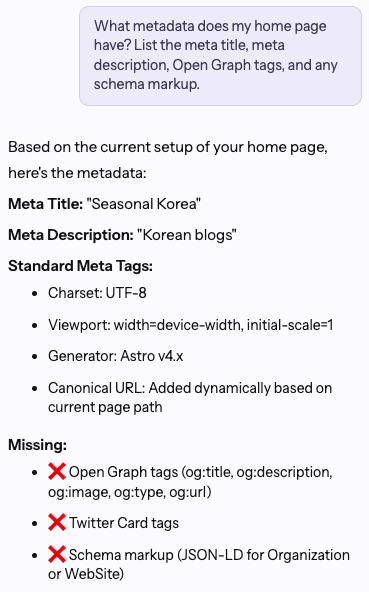
The AI Agent reads your page code to answer, so it may say a page has no canonical tag. That is expected. The canonical tag is added when your site is published, not stored in the page files.
Note: Requests you send to the AI Agent use AI credits, in the same way as any other edit you ask for. Changes you make yourself in site identity do not. See AI credits for how usage is counted.
Updating sitewide metadata
The only metadata that applies to every page on your website at once is the favicon. You set the favicon yourself in site identity.
Setting your favicon
A favicon is the small icon that identifies your site in the browser tab and in a visitor's bookmarks.
- In the Menu on the left, click
 Settings
 - Under Site identity, click
Manage site identity. - In the SEO metadata section, under Favicon, click
 Choose from library
 - Pick your image and click
Continue. - Click
Savein the SEO metadata section.
Tip: Use a square image with one simple shape, such as your logo mark or your initials. A favicon is shown at a very small size, so a full logo with a business name and a tagline turns into a smudge.
Adding Open Graph tags to every page
You can ask the AI Agent to add Open Graph tags to all of your pages. Each page uses its own title and description, so every shared link describes the page it points to. To save time, you can even start with the same Open Graph image for each page. You can customize each page's image later.
Add Open Graph tags to every page on my website. Use each page's own meta title and description, and the page's main image. Use my logo for any page without an image.
Updating page-level metadata
Page-level metadata applies to one page only. You can review and customize each page individually for direct control.
Setting a page's title and description
Keep the title under about 60 characters and the description under about 155, so search engines do not cut them off. Name what the page offers and where you work if you're a local business.
Set the meta title and meta description for my [page name] page. Use "[title]" as the title and "[description]" as the description.
If you would rather have the AI Agent write them, leave out the quoted text and ask it to suggest a title and description for the page first.
Adding Open Graph tags to a page
Use this when you want a single page to have its own sharing preview, such as a page you plan to post on social media.
Add Open Graph tags to my [page name] page. Use the same title and description as the page's metadata, and use [the page's hero image / a specific image] as the image.
Adding schema markup to a page
For most businesses, the most useful schema is LocalBusiness on the homepage. It describes who you are and where you work.
Add LocalBusiness schema markup to my homepage with my business name, phone number, address, and service area.
Other schema markup types you may want to include, depending on your page content:
- Organization
- Article, BlogPosting, or NewsArticle
- Product
- FAQPage
- Event
- Recipe
- JobPosting
- View more here
Publishing your changes
Search engines and social networks only see your metadata once your site is published. After you make your changes, click Publish in the top right.
Your favicon appears as soon as the site is published, though you may need to reload the page to see it. Search results and social previews take longer, because Google and social networks work from copies they saved earlier. That delay is normal and is covered below.
Testing your metadata
After you publish, you can check what search engines and social networks actually see. These free tools read your live page, so test the web address on your primary domain.
Checking social sharing previews
- Facebook Sharing Debugger: shows the preview Facebook builds from your Open Graph tags. Click Scrape Again to replace an old saved preview. You need to be logged in to Facebook.
- LinkedIn Post Inspector: shows how your link will look in a LinkedIn post and refreshes LinkedIn's saved copy. You need to be logged in to LinkedIn.
- OpenGraph.xyz: previews your link on several networks at once, with no login needed. X doesn't have its own checking tool anymore, so this is a quick way to see your X card.
Checking search results and schema markup
- Google Rich Results Test: shows which of your schema markup types can earn special search features in Google, like star ratings or business details, and flags errors.
- Schema Markup Validator: checks all of your schema markup, including types Google doesn't use for rich results.
- Google Search Console URL Inspection: shows the version of your page Google has saved and lets you ask Google to crawl it again. See Adding your website to the Google Search Console.
Frequently asked questions
→Why does Google still show my old title?
⇒Google can choose to show different text in search results. Metadata is merely a suggestion. However, your latest changes may also need to be found by Google. This usually takes a few days to a few weeks. You can ask Google to look again sooner by submitting your site in Search Console. See Adding your website to the Google Search Console.
→I added Open Graph tags, but the old preview still appears when I share my link.
⇒Social networks save a copy of your preview the first time your link is shared, and they keep showing that copy for a while. To refresh it right away, paste your link into the Facebook Sharing Debugger or LinkedIn Post Inspector. See Testing your metadata.
→Do I need to add a canonical tag?
⇒No. Every page gets a canonical tag when your site is published.
→Will changing my metadata change how my pages look?
⇒No. Metadata only changes how your website is described in search results and shared links. Your page title also shows on the browser tab.