
|
Written by: Carolyn S. Last updated: 18 Nov., 2025 |

By default, email forwarding causes your personal email address to appear in the reply-to field unless you update your Gmail settings. If you want your custom business email to appear when you reply, follow the steps below.
These instructions begin after you’ve already created a custom forwarding email in B12 and set it to forward to your personal inbox.
Updating your Gmail settings
1. Click this link to generate a new app password for Gmail.
Note: You must enable 2-Step Verification to generate an app password.
2. On the App passwords page, type a label such as “Custom Email Password.”
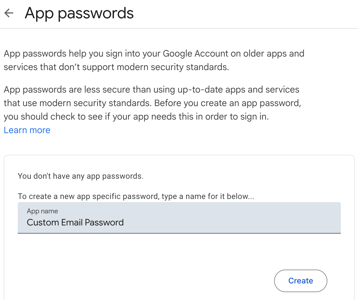
3. Click Create.
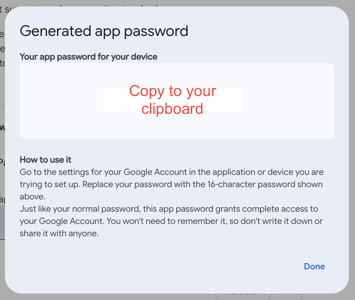
4. Copy the generated app password to your clipboard.
5. In a new browser tab, go to GMail and switch to open personal Gmail account.
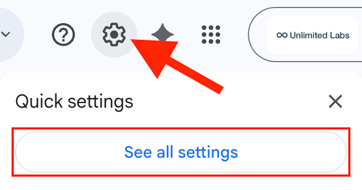
6. Click the gear icon in the upper right corner, then select See all settings.
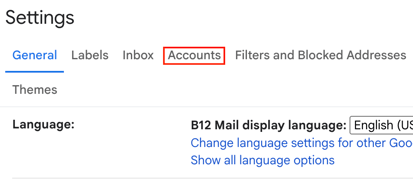
7. Go to the Accounts or Accounts and Import tab.
8. In the Send mail as: section, click Add another email address.
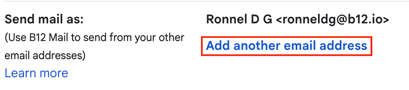
9. Type in the name and email address.
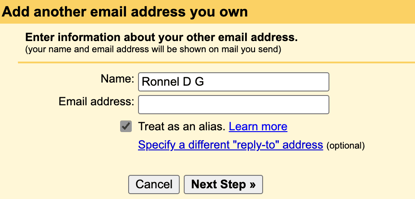
10. Check Treat as an alias, then click Next Step >>.
11. In Username, enter your full personal Gmail address (including @gmail.com)
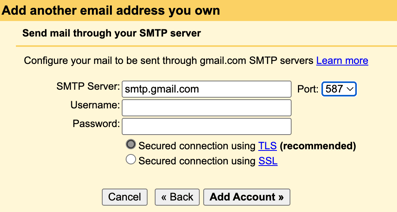
12. In Password, paste the app password you generated—not your normal Gmail password.
13. Select Secured connection using TLS, then click Add Account >>.
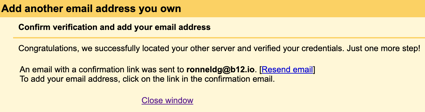
You should now see a confirmation message.
Note: If Gmail reports it is unavailable, click Try Again or restart the Add email address process. If this issue persists, contact customer success for assistance.
14. Check your personal Gmail inbox for an email from the Gmail Team and open the confirmation message.
25. Click Confirm.
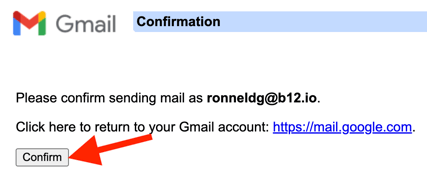
Once verified, the pop-up window should close automatically. If it doesn’t, close it manually and return to Gmail. We recommend refreshing your Gmail tab to ensure the new address appears.
Now, when you compose an email, the From field will include a dropdown where you can choose to send messages from either your personal Gmail address or your custom business email.