
|
Written by: Ronnel DG |

The AI Website Prompt Gallery is a collection of AI-generated website starting points organized by business type. Each prompt includes a layout, structure, and content style you can remix and personalize to match your brand.
If you'd rather write your own prompt from scratch, see Writing your first prompt and generating your site.
Browse the gallery
- Go to the AI Website Prompt Gallery.
- Use the search bar to find prompts relevant to your business type.
- Narrow your results using the filter options:
- Websites
- Online stores
- Portfolios
- Web apps
- Business tools
- Blogs
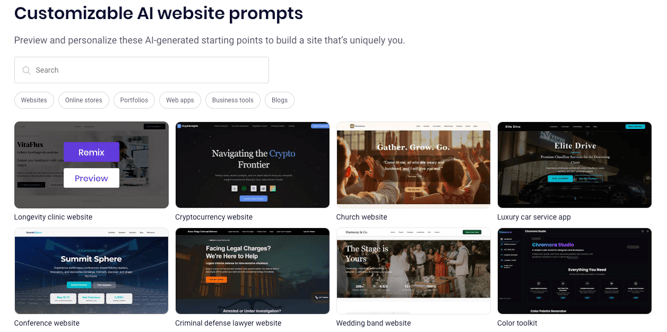
Preview and select a prompt
- Click
Previewon any prompt to see its layout and design. - To explore the full layout, click
Visit site. - If the prompt fits your goals, click
Get a site like thisto move forward. - To keep browsing, click
Back to gallery.
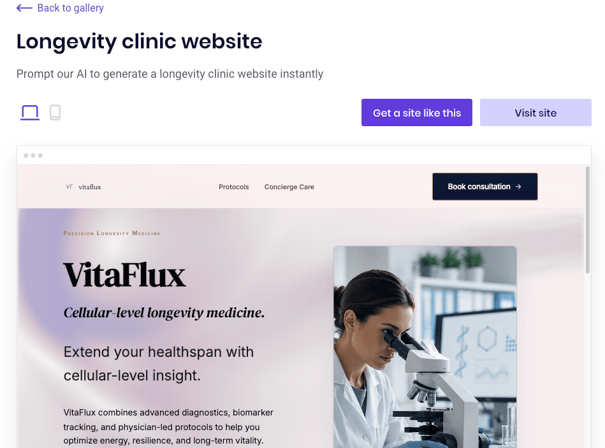
Preview and select a prompt
- Click
Get a site like thisorRemixon your chosen prompt. You'll be redirected to the account setup page. - Create a B12 account by setting your email address and password.
If you're already logged in, clickCreate new website. - B12 will generate a replica of your chosen prompt within the B12 Editor.
Update your business description
Before personalizing your site, update your business description in your account profile. The AI Agent uses this description as a reference when rewriting your site's content.
- In the B12 Editor, click the
 logo in the upper-left corner.
 - Select
Profilefrom the dropdown menu. - Scroll to the
Businesssection. - Update your business name, description, style and design preferences, and any other details that you want B12's AI Agent to know.
- Click
Save.
Tip: The more detail you include in your business description, the more personalized the result. Include your business name, what you do, who you serve, and your primary goal for the site.
Saving updates your profile, but it does not automatically update the text on your website. Complete the next step to apply your changes to the site.
Ask the AI Agent to apply your description
After saving your business description, prompt the AI Agent to rebuild your site using your updated information. In the AI Agent chat, send a message like:
I've updated my business description. Please rebuild the website to reflect my updated business details.
The Agent will use your description to revise the site's colors, copy, headlines, and calls to action. Review the changes in the preview panel and ask for any further adjustments before moving on.
Tip: If you have a logo, attach it to this prompt for the agent to use. Or you can ask the agent to generate a logo for you.
Editing and publishing your site
Once your updated site is ready in the B12 Editor, you have three options for making changes:
- AI Agent chat — Type a request to make broad changes across pages or sections.
- Visual Edit — Click an element on your site to edit it directly using the settings panel, or ask the AI Agent to change just that element. To use it, click
 Visual Edit
 - Code editing — Edit your site's HTML, CSS, or JavaScript directly.
UseEdit Codeon a selected element for targeted changes, or switch to Code
Code
When you're satisfied with your changes, click Publish to make your website live.