
 Written by: Ronnel DG Last updated: 15 Apr., 2026 |
Visual Edit is a point-and-click editing tool in the B12 AI Agent chat. When you select an element on your website preview, a settings panel opens in the left sidebar where you can make changes directly — no coding or Agent help required.
Tip: You can make changes across multiple sections and settings before saving. Any change you make appears in the preview instantly. All edits are applied at once when you click Save.
Editing text
- In the AI Agent chat, click
.svg) Visual Edit
Visual Edit - Click the text element you want to edit. This can be a heading, body text, call-to-action button, or any other text on the page. A settings panel appears on the left side of the screen.
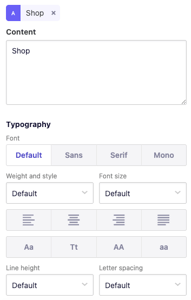
- Update the text as needed. You can also change typography, such as font, weight & style, font size, alignment, capitalization, line height, and letter spacing.
- Review your changes in the website preview. Continue editing other elements or pages as needed, then click
Savewhen you're done.
Editing images
- In the AI Agent chat, click
- Click the image element you want to edit. A settings panel appears on the left side of the screen.
- Choose one of the following options:
- Edit — Crop, flip, rotate, or apply filters to the image. Click
Savewhen done to apply changes. - Metadata — Add alternative text (alt text) to the image. Alt text improves accessibility for users who rely on screen readers.
- Replace — Swap the image with a different one. You have three options:
- Library — Upload an image from your device.
- Search — Search for free stock photos from Pexels.
- AI Agent — Generate a new image that matches your brand or industry.
- Edit — Crop, flip, rotate, or apply filters to the image. Click
- When you're done making changes, click
Save. Image updates may take up to two minutes to appear in your website preview.
Note: Generating an image with the AI Agent uses AI credits.
To learn more about editing images, see Adjusting images with Visual edit.
Editing style
- In the AI Agent chat, click
- The design setting will appear in the left sidebar. You can edit the following:
- Colors – Adjust brand, surface, UI, chart, and sidebar colors.
- Fonts – Change the default sans-serif, serif, and monospace fonts. Choose from B12's available fonts, or upload a custom font.
- Effects – Edit shadow and border radius (the degree of rounding on corners).
These changes apply sitewide.
- To edit a specific section or element, click directly on it. Under typography, you can update:
- Colors – Change the text and background color.
- Background image – Change the section's background picture.
These changes apply only to the section you selected.
- Make your changes, then click
Save. Style updates may take up to two minutes to appear in your website preview.
To learn more about editing styles, see Editing style.
Editing forms
You can also adjust the form title, automated emails, and post-submission behavior of forms using visual edit.
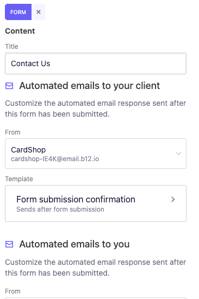
- In the AI Agent chat, click
- Select the form you want to edit. A pop-up appears.
- Click
Edit form. The left sidebar opens with editing options.
To learn more about editing forms, see Adding and editing contact forms.
Tip: You can make changes across multiple sections and settings before saving. All edits are applied at once when you click Save.