
|
Written by: Ronnel DG Last updated: 16 Oct., 2026 |
This feature requires at least one Client Engagement seat. View available plans and pricing here. |

B12 Email Marketing lets you send emails to the contacts in your Contact manager. Whether you’re announcing your website launch, promoting a new service, or sharing an update, you can create professional messages that match your brand.
Selecting email templates
1. In the left sidebar menu, go to  Email marketing
2. All your drafted, sent, and automated emails can be managed here. Click Start a new email.
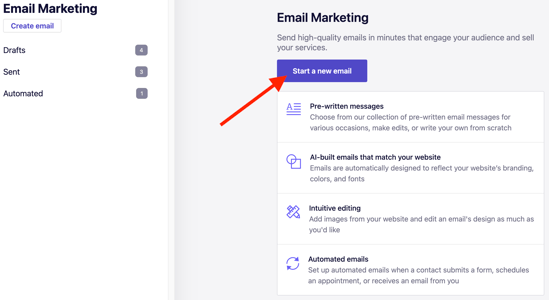
3. Choose a template.
B12 offers pre-written templates for various purposes, including welcome messages, event announcements, and survey requests.
To start from scratch, select Blank email.
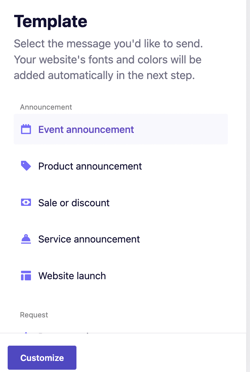
4. After selecting a template, click Customize to personalize your email’s text, images, and layout.
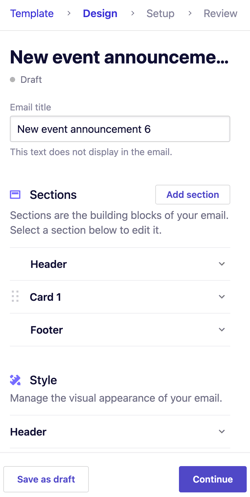
5. When you’re finished editing, click Continue to set up your email details.
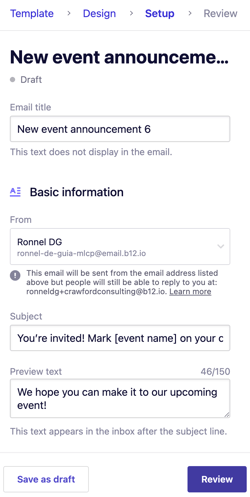
6. When you're finished, click Review. In the next pane, click Send a test email to preview your message before sending it to your contacts.
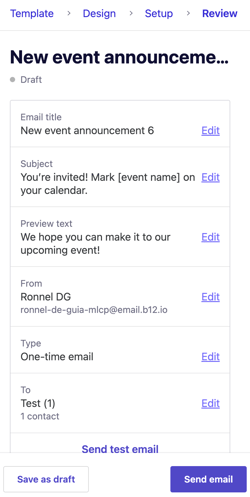
7. Once your email looks polished and finalized, click Send email. In the pop-up, click Send now to send your email.
Note: Some emails are held for review before they go out, especially on new accounts. Learn more in Why is my marketing email under review?