
|
Written by: Ronnel DG |
|
This feature requires at least one Client Engagement Seat. View available plans and pricing here. |

Before sending your email to contacts, it’s best to send a test email to preview how it looks in an inbox and confirm that all links, images, and text appear correctly.
Sending a test email
1. After customizing your email’s sections and style, click Continue to proceed with the Setup.
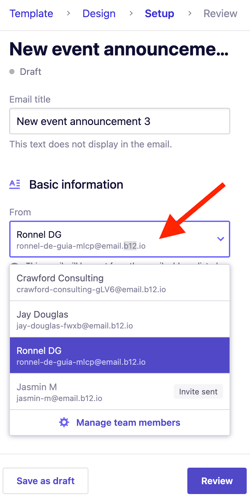
2. In the Basic information section, you’ll see a dropdown under the From. Select the email address you want to display to recipients.
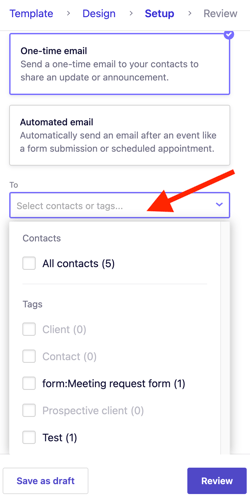
3. Under To, choose who will receive the email by selecting All contacts or applying specific tags.
4. Click Review.
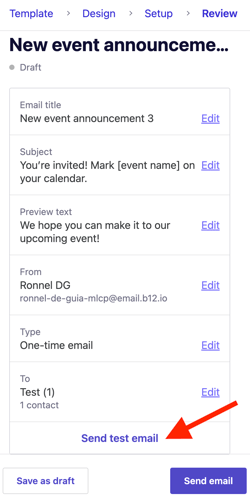
5. In the Review step, click Send test email.
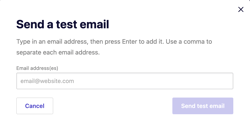
6. A pop-up window will appear. Enter one or more email addresses to receive the test email. Use commas to separate multiple addresses, and then click Send test email.
If you like the way your test email looks, you’re ready to officially send it! Read more about how to send an email with B12 Email Marketing.