|
Written by: Meredith |
|
This feature is currently available only to users located in the United States. |

Sending invoices and accepting payments online is a powerful way to engage with your clients. Getting paid is integral to your business, so it is important to see the end-to-end invoice payment experience from your client's perspective.
Fortunately, B12 has a feature that lets you simulate paying an invoice in 'demo mode' without entering a payment method, such as a credit card. Don't worry, your clients will not be able to access 'demo mode.'
Send yourself an invoice
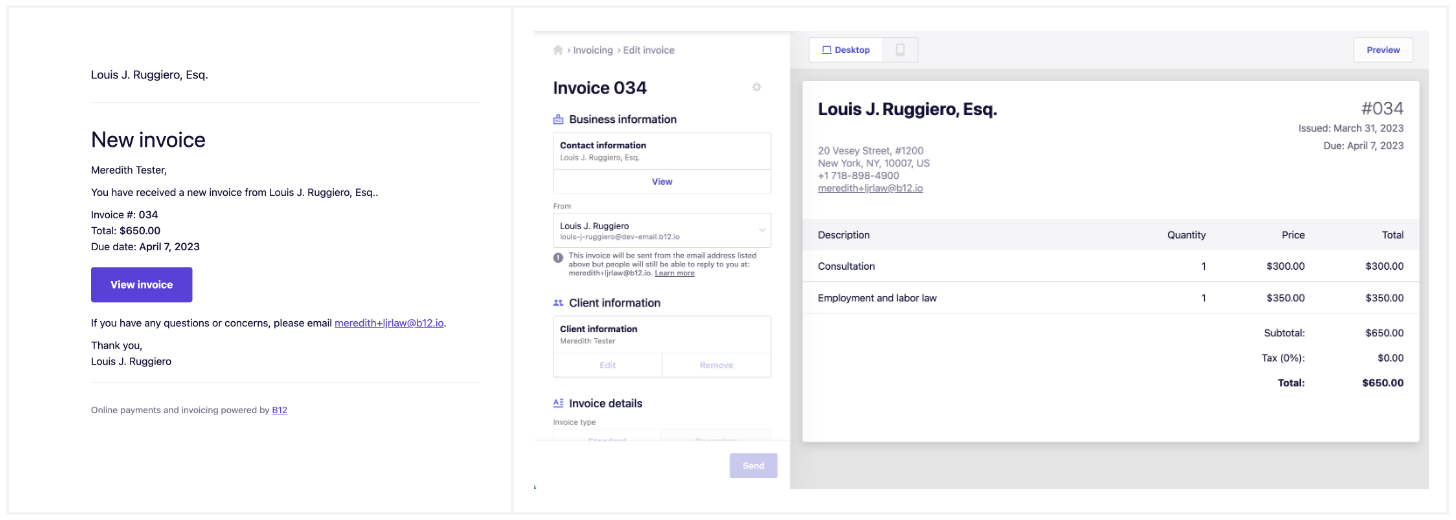
The first step is to create a new invoice and send it to your email address. Only one-time invoices (note recurring invoices) can be paid in demo.
To view the invoice that you just sent, you have two options:
-
Click on the
View invoicebutton from the New invoice email that you received. Just make sure you that you are already logged in to B12 in the same browser that you opened the link to view the invoice, or - Re-open the invoice that you just sent and click on the
Previewbutton in the top right corner of the screen.
Demo mode
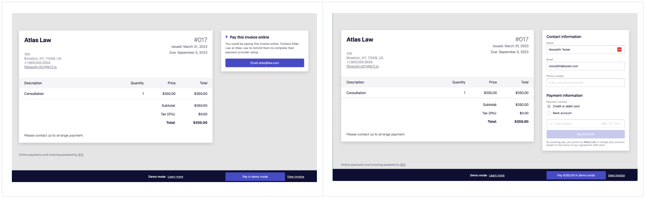
Depending on whether you have already connected your bank account details to the B12 Commerce, you (and your clients) will see either similar or different payment screens.
Bank account details already connected
-
Your clients will not be able to see the dark blue bar at the bottom of the screen, only you and team members who have appropriate invoicing permissions.
- Note that the Payment information section on the right is disabled (grayed out) in 'demo mode', but it will be enabled for your clients.

Bank account details not connecte
-
Your clients will not be able to see the dark blue bar at the bottom of the screen, only you and team members who have appropriate invoicing permissions.
- Note that clients cannot pay you online until you connect your banking details.
- If you click the
Pay in demo mode button, you will see what clients would ideally see (a way to enter payment information), and hopefully that will convince you to connect your bank account details to B12 Commerce so you can accept payments online.
Pay in demo mode
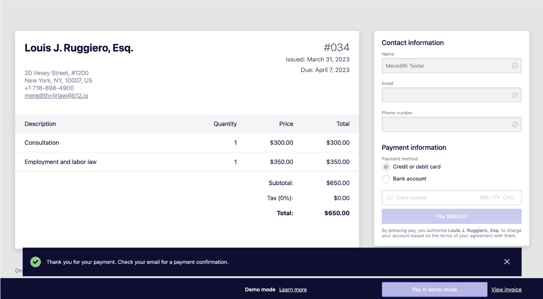
Clicking Pay in demo mode will result in the following:
-
The payment notification banner will display.
- You will receive a payment confirmation email.
- The
Pay in demo modebutton will be disabled, and you will no longer be able to demo payment for this particular invoice.
View paid (in demo mode) invoice in the invoice table
If you return to the view, you will see your payment listed in the table with the status Paid (demo). Since this is not a real payment, this paid invoice will not display in the Payments view.
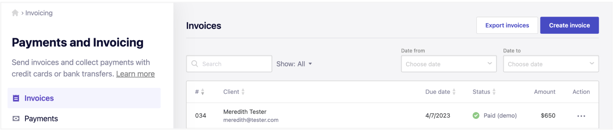
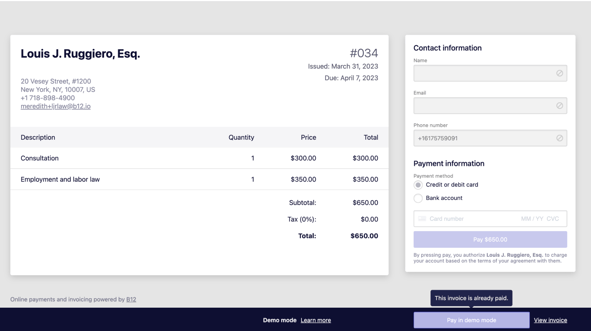
Note: If you reopen an invoice that was previously paid in demo mode, you will not be able to pay it again. The Pay in demo mode button will be disabled, and a message will appear above it indicating that the invoice has already been paid.