

Written by: Meredith |
Contracts and eSignatures need an active Client Engagement seat. Email marketing needs one on Client Engagement plans. Sending invoices doesn't. |
B12 lets you assign permissions so team members can send invoices, eSignature requests, or email marketing messages using their own name.
Using the From dropdown to send as a team member
When creating an invoice, contract, or email marketing campaign, you can choose who the message is sent from.
1. Start creating an invoice (in Commerce > Invoices, click Create invoice), an eSignature request (in eSignatures, click Create a new document), or an email marketing message (in Email marketing, click Create email).
2. Locate the From dropdown. Select the team member you want to send the message as.
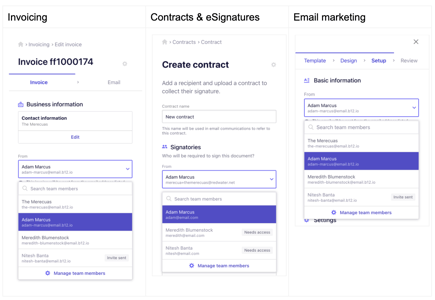
If a team member does not appear in the From dropdown, their permissions may need to be updated or they may need to accept their invite.
Click Manage team members to review or update access levels in the Team management view.